How to Get a YouTube Transcript Without Captions
Learn when to extract existing YouTube captions and when to transcribe the audio, then review timestamps, export subtitles, and turn the transcript into notes.
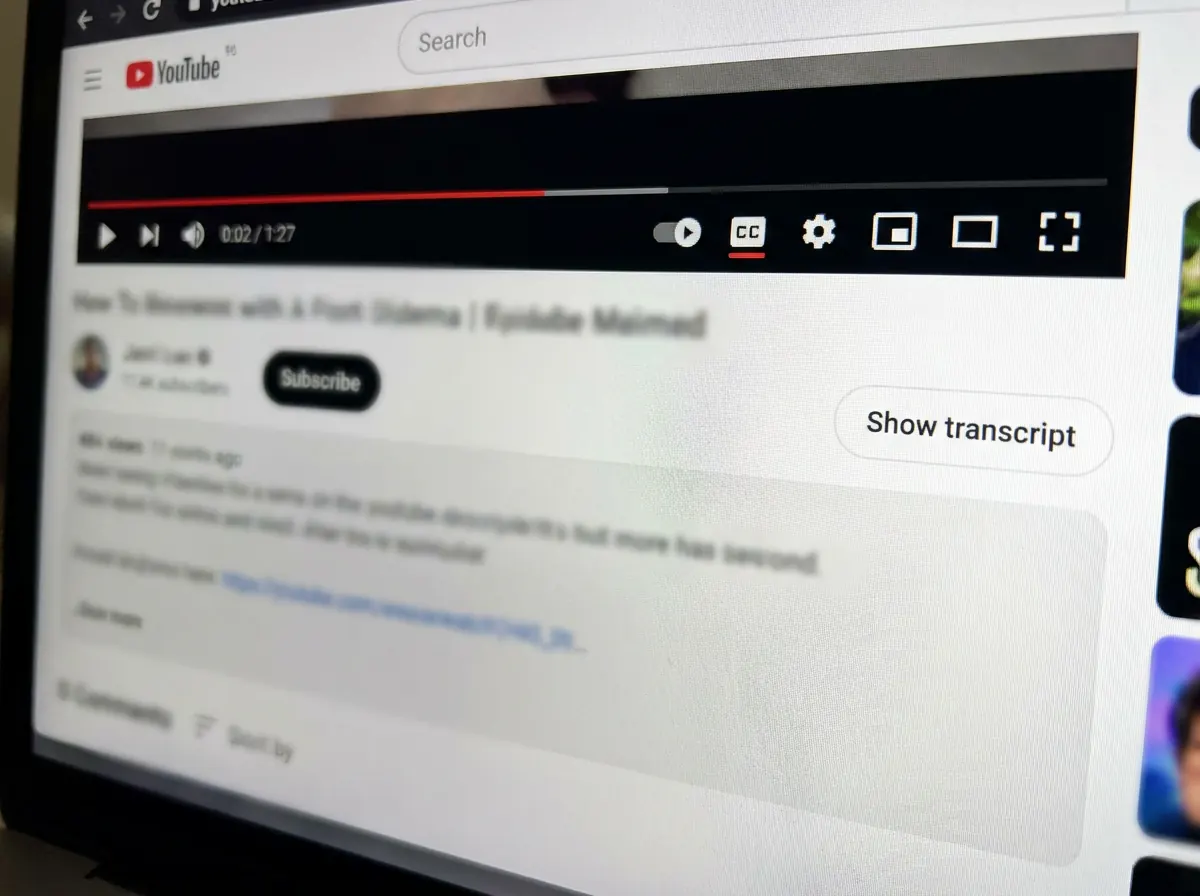
A YouTube transcript can come from an existing caption track or from speech recognition. If there is no usable caption track, a caption extractor has nothing to retrieve: you need a tool that can transcribe the audio.
Use the YouTube transcript generator when you need the words and timestamps. Use the YouTube video summarizer when you want chapters and key points instead of reading every line.
Choose the right method
| What you have | What to do | What to check |
|---|---|---|
| An available caption track | Retrieve the captions or use the video's transcript, when available | Captions can contain recognition or timing errors |
| A public video with speech but no captions | Transcribe the audio | Names, numbers, background noise, and overlapping speakers |
| Your own recording on your device | Upload the audio or video file | Choose the file that contains the clearest speech |
| A transcript when you only need the main ideas | Generate a summary and chapter notes | Check important claims against the original wording |
“Without captions” means speech recognition is needed. It does not mean that a tool can access every private, unavailable, or restricted video.
Get the transcript in SnapVee
- Open the YouTube transcript tool.
- Paste the public video URL and submit it. If you are working with a local recording instead, use the upload option in the transcription tool.
- Wait for processing to finish. A video without captions needs audio processing; this can take longer than retrieving an existing subtitle track.
- Review the transcript alongside the source. Check the opening, a section in the middle, and the final section before using the whole result.
- Correct important names, figures, and terminology. Review the timing if the output will become subtitles.
- Export the available text or subtitle format that fits your next task. Check the result page and current pricing for access and export allowances.
A transcript and a summary serve different purposes. Keep the transcript when exact wording matters; use a summary to navigate and understand the material.
What if transcription fails or the text looks wrong?
The link cannot be opened: first check that the original video is still available. If you own a local copy, try uploading that file. Changing the URL format cannot make an inaccessible video available.
There is little or no recognized text: check that the source actually contains audible speech. Music, long silences, or very quiet speech can produce sparse results.
Names or numbers are wrong: play the surrounding sentence and correct the transcript. Do not rely on a generated summary to repair an uncertain source word.
The transcript exists but is hard to scan: generate chapter notes, then return to the timestamped source when a point needs verification.
Turn the transcript into reusable notes
Open the YouTube summarizer for an overview, chapters, and a mindmap. For a note-taking workflow, use YouTube to Markdown and follow the Notion and Obsidian export guide.
For example, a useful review checklist is:
- What is the main claim, and where does the speaker explain it?
- Which names, figures, and quotations need checking?
- Which chapter contains the worked example?
- What action can I take after watching?
These are review prompts, not a sample generated from a particular video.
Common questions
Can I extract captions from a video that has none?
No. Extracting captions retrieves an existing track. Transcribing speech creates a new text result from the audio. Choose a tool with audio transcription when there is no track to extract.
Will the transcript be perfectly accurate?
No automatic transcription is guaranteed to be error-free. Audio quality, terminology, and overlapping speech affect the result. Verify wording before quoting it or publishing subtitles.
What if I only need the main ideas?
Read the chapters and summary first, then return to the full transcript when you need an exact quote. For a comparison of available transcription methods, read the YouTube transcript tools guide.
Next steps
About the author
SnapVee Team
Product guides
Official guides to using SnapVee's tools and exporting your results.