How to Export Video Notes to Notion and Obsidian
Export SnapVee video summaries as Markdown, copy notes into Notion, or send them to an Obsidian vault. Learn the actual steps and how to handle export problems.
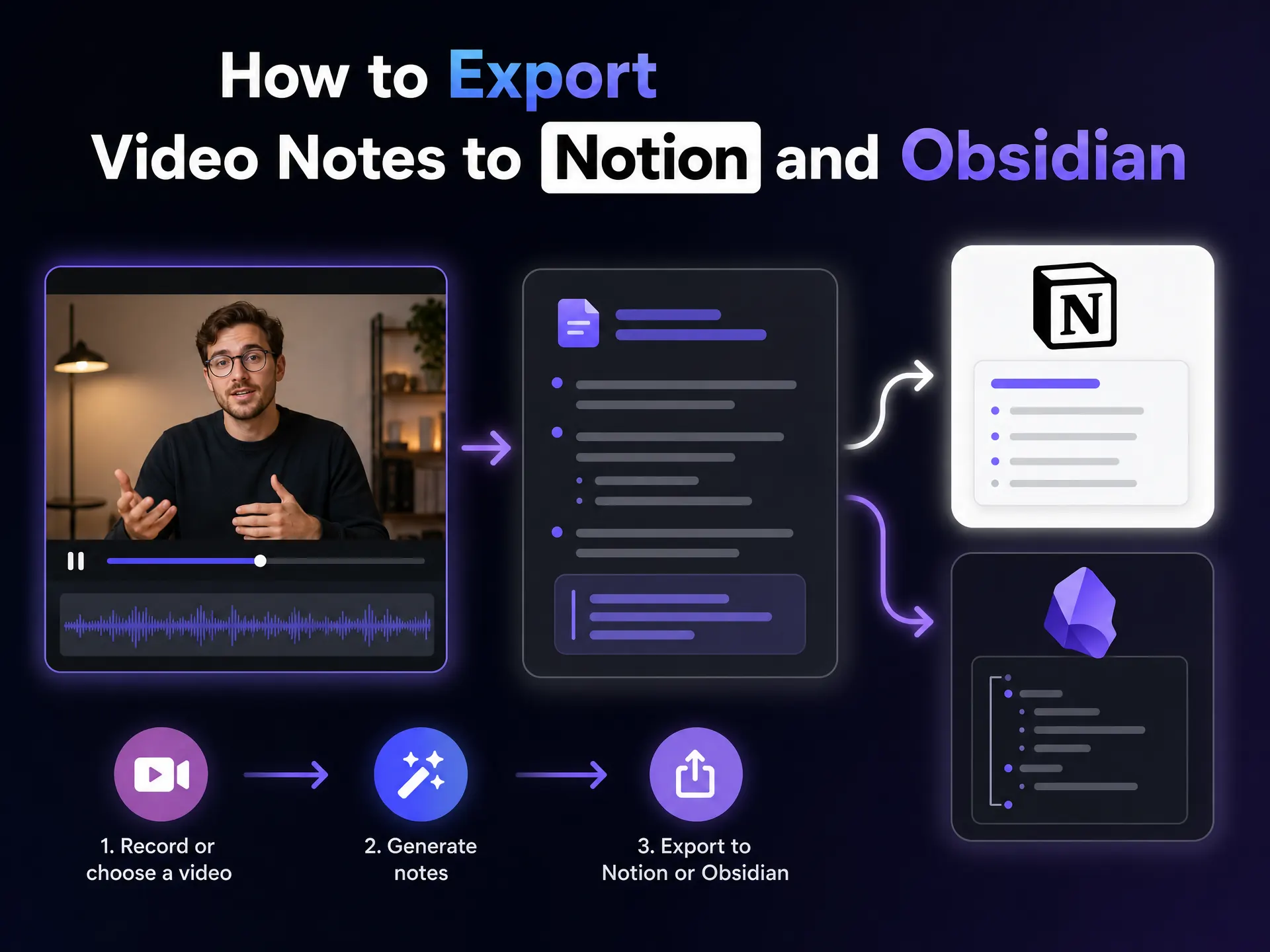
SnapVee lets you reuse video notes in three ways: export Markdown, copy the current view and open Notion, or send Markdown to the Obsidian app. The Notion option copies content for you to paste; it does not automatically sync a workspace or create a page through the Notion API.
Start with YouTube to Markdown, or use Video Summary for other supported links and local recordings.
Choose an export method
| Method | What SnapVee does | What you do next |
|---|---|---|
| Markdown | Exports a reusable text file | Open or import it in your note app |
| Notion | Copies the current view and opens a new Notion page | Choose your destination, paste, and review formatting |
| Obsidian | Copies Markdown and opens Obsidian with a new-note request | Allow the app to open and check the created note |
Export uses the selected result view. Choose the notes or report you want before opening the export menu. A preview may show only part of a result; follow the result page's sign-in or plan requirements to unlock the available export actions.
Send video notes to Notion
- Finish processing your video and open its result.
- Select the view you want to keep.
- Open the export menu and choose Export to Notion.
- SnapVee copies the content and opens Notion's new-page destination.
- Paste into your chosen page, then review headings, lists, links, and code blocks.
If the new tab does not open, open Notion yourself and paste the copied content. If copying fails, allow clipboard access in your browser or use a Markdown file instead. After pasting, inspect the result rather than assuming every Markdown element was converted exactly as shown in SnapVee.
Send video notes to Obsidian
- Install and open Obsidian on the device receiving the note.
- In the SnapVee result, choose Export to Obsidian.
- Optionally enter the target vault name or ID. You can also specify a folder within that vault.
- Choose Send to Obsidian and allow the browser to open the app.
- Check the note in the target vault.
Leave the destination fields blank to use Obsidian's default destination. If you specify a folder, also specify the vault. For example, a folder such as Courses/Video notes describes a location within the selected vault.
SnapVee uses the clipboard and Obsidian's application link. If the app does not open or the browser blocks the handoff, export Markdown and save it in your vault instead.
Import a Markdown file and check the formatting
For a file-based workflow, export the selected view as a .md file. In Notion on the web or desktop, open Settings → Import → Text & Markdown and choose the file. In Obsidian, save the Markdown file inside your vault and open it as a note. Keep the original export as a backup before editing.
Standard headings, lists, links, and code blocks are the most portable parts of a note. A chapter timestamp is a navigation reference: preserve its source link when one is available, then check that it opens the intended point in the original video. A plain timestamp such as 12:30 does not become a playable video by itself. Mermaid source code may appear as code until the destination is configured to render it; export a mindmap image if you need a fixed visual.
Check the first and last sections after importing, then compare an important list and a source link with the original result. Importing a file and sending a note are individual actions, so later edits are independent in each app.
Keep the source and review the note
Before archiving, check that the note contains enough context to be useful later:
- The video title and original source link.
- The chapters or timestamps you need to revisit.
- Key concepts and your own follow-up questions.
- Action items you have checked against the source.
A simple organizational template is:
# Video title

Source: original video URL

## Main ideas
- Claim and supporting example

## Revisit
- Timestamp and reason to return

## My next steps
- Action I have chosen after checking the source
This is a suggested template, not an example of an automatically generated result. Mindmap code and its rendered image are different outputs: if a destination does not render Mermaid as expected, use an exported image or keep the code for later editing.
Common questions
Does Export to Notion continuously sync my notes?
No. It copies the current content and opens Notion. Changes made later in either app are not automatically synchronized by this action.
Must I use an integration to keep the notes?
No. Markdown is a portable alternative. You can keep a local copy and import or open it in a compatible editor.
Can I export notes from a video without captions?
First generate the transcript and summary successfully. See how to transcribe a YouTube video without captions, then return to the export menu.
Related tools
Official references
About the author
SnapVee Team
Product guides
Official guides to using SnapVee's tools and exporting your results.