Turn a Two-Hour Bilibili Course into Timestamped Markdown Notes
A practical Bilibili study workflow: check the course segment, generate chapter notes, verify timestamps and terminology, then save Markdown for review.
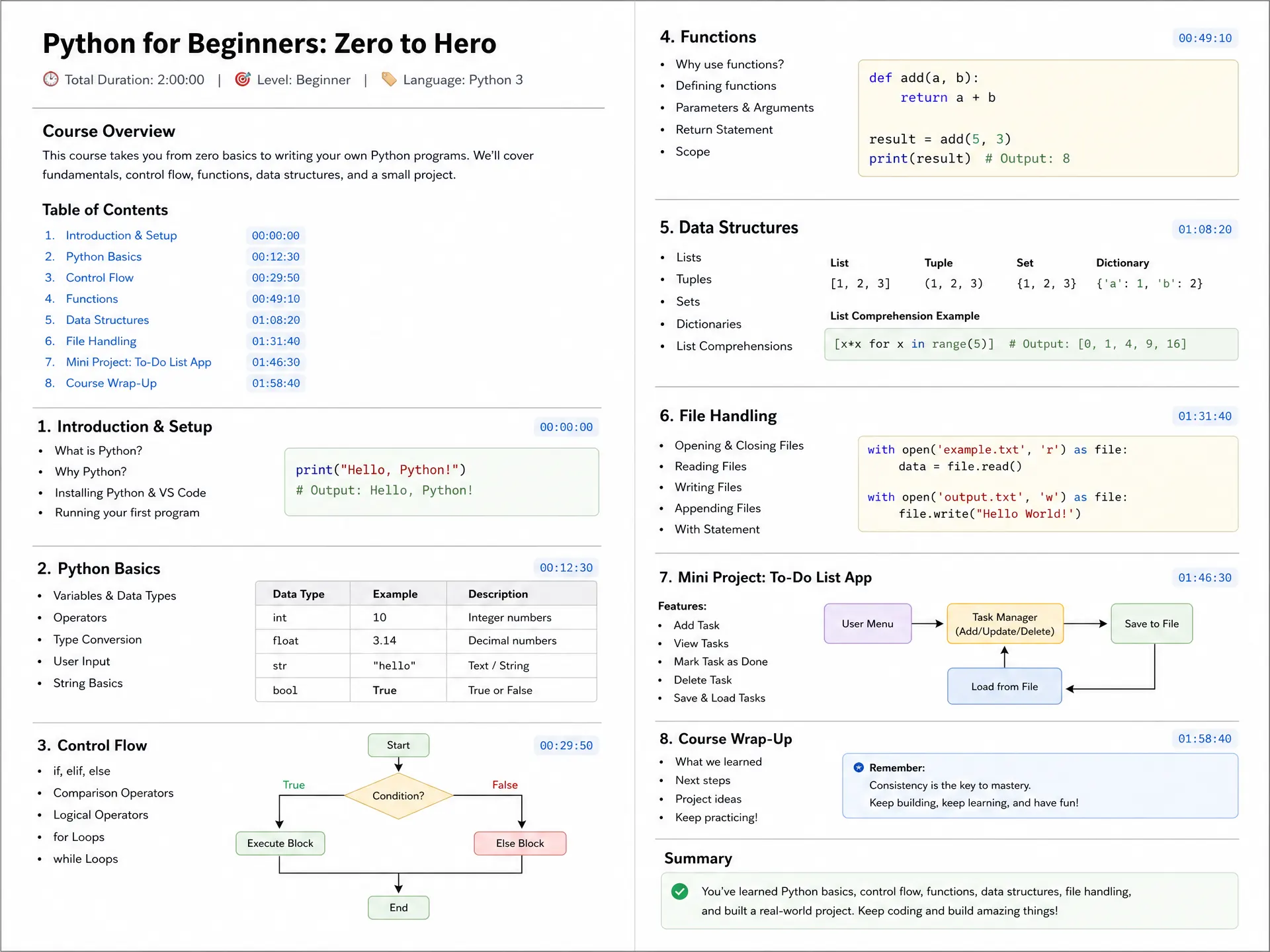
To turn a long Bilibili course into useful notes, generate chapter notes from the correct video, check them against the lecture, and export Markdown with the source and timestamps intact. Use the Bilibili summarizer for concepts and chapters, or Bilibili transcription when you need the spoken wording.
Bilibili is a Chinese video platform widely used for lectures and educational videos. This guide is for people studying from those videos, including learners who take notes in another language. It uses a two-hour course as a study scenario. The timestamps and note template illustrate the format; actual processing time depends on the source and task conditions.
Before submitting the link
Open the source and check the course title, instructor, spoken language, duration, and selected part. A course collection or a video with multiple parts should not be assumed to arrive as one complete task. Record which lesson you are submitting, then compare that with the resulting content and duration.
Check the current task-length allowance and remaining processing balance on the page or pricing. A two-hour video may exceed your current allowance. If you already have the course as separate lessons, process and label the relevant lessons individually. Do not assume that submitting a collection URL automatically processes every item.
Use a public, accessible source. If link processing fails and you own a suitable local recording, use the upload option in the general summary tool. The workflow does not bypass membership, private-video, or availability restrictions.
A practical five-step study workflow
1. Decide what you need to learn
Write one question before processing: “Which steps let me solve this kind of problem?” is more useful than “Summarize everything.” Keep that question beside your notes; it is a study aid, not a claim that the submission form accepts custom instructions.
For an exam lecture, focus on definitions and worked examples. For a software course, focus on prerequisites, commands, and the expected output. These goals determine which passages need careful replay.
2. Generate notes from the selected video
Paste the lesson URL into the Bilibili summary tool. Confirm the detected video and start processing. Wait for the result, then read the overview and chapters before treating any generated action list as a study plan.
If there is no usable subtitle track, audio transcription is needed. Quality depends on audible speech and access to the source. Generated notes can miss a formula that appears only on a slide or a command shown without being read aloud.
3. Verify the chapter boundaries and terminology
Replay the start of each important chapter. Check whether the timestamp leads to the correct explanation and whether the chapter title describes it accurately. Review specialist vocabulary, numbers, negation, and exceptions.
If you study in another language, retain the original Chinese term beside its translation for ambiguous concepts. Use Bilibili transcription when you need a fuller reference, but still compare important wording with the original audio.
4. Add your own learning layer
Separate what the instructor says from your own interpretation. Turn one worked example into a small exercise and write down what you could not reproduce. A useful note should help you identify what to revisit, not merely look shorter than the lecture.
Use this illustrative Markdown template. The times and labels are placeholders, not measured chapter boundaries from a real course:
# [Course title] — [lesson / part]

Source: [original Bilibili URL]
Instructor: [name]
Goal: [question I want to answer]

## 00:00 — Prerequisites
- [required concept]

## 24:10 — Worked example
- Instructor's explanation: [checked against the source]
- My understanding: [in my own words]
- Revisit: [timestamp and reason]

## Practice
- [ ] Reproduce the example without looking at the solution.
- [ ] Verify an uncertain term or formula.
5. Export and check the saved file
Choose the result view you want to keep, then use its Markdown export when available to your account. Open the file and inspect headings, lists, source links, and timestamps. A timestamp written as plain text is not automatically a working deep link; test any clickable source links after export.
In Obsidian, save the Markdown file in your vault or use SnapVee's application export. The Notion action copies the content and opens Notion; you still paste into your chosen page. It is not continuous synchronization. Follow the complete export guide for destination settings and fallbacks.
Questions that matter for long courses
Will I receive every spoken sentence? Chapter notes are condensed. Use the transcript workflow if you need the full wording; keep both outputs when the course contains material you must quote precisely.
Are diagrams and code captured automatically? Do not assume so. Review the video for information that is only visible on screen and add your own permitted references or notes.
Can I merge several lessons? You can organize the exported Markdown under a course index, keeping each lesson's source and local timestamps. Do not present timestamps from separate videos as one uninterrupted timeline.
Do mind maps survive every export? Rendering depends on the destination. Keep editable text and verify the saved result rather than assuming a diagram will look identical everywhere.
For file formatting, see Obsidian's Markdown documentation and Notion's import documentation. To apply the same approach to YouTube, use YouTube to Markdown or the YouTube transcript guide.
About the author
SnapVee Team
Product guides
Official guides to using SnapVee's tools and exporting your results.