How to Get a YouTube Transcript: Captions, Auto-Captions, and Audio
Find a YouTube video's full transcript, compare creator-provided and automatic captions, and choose audio transcription when no usable caption track exists.
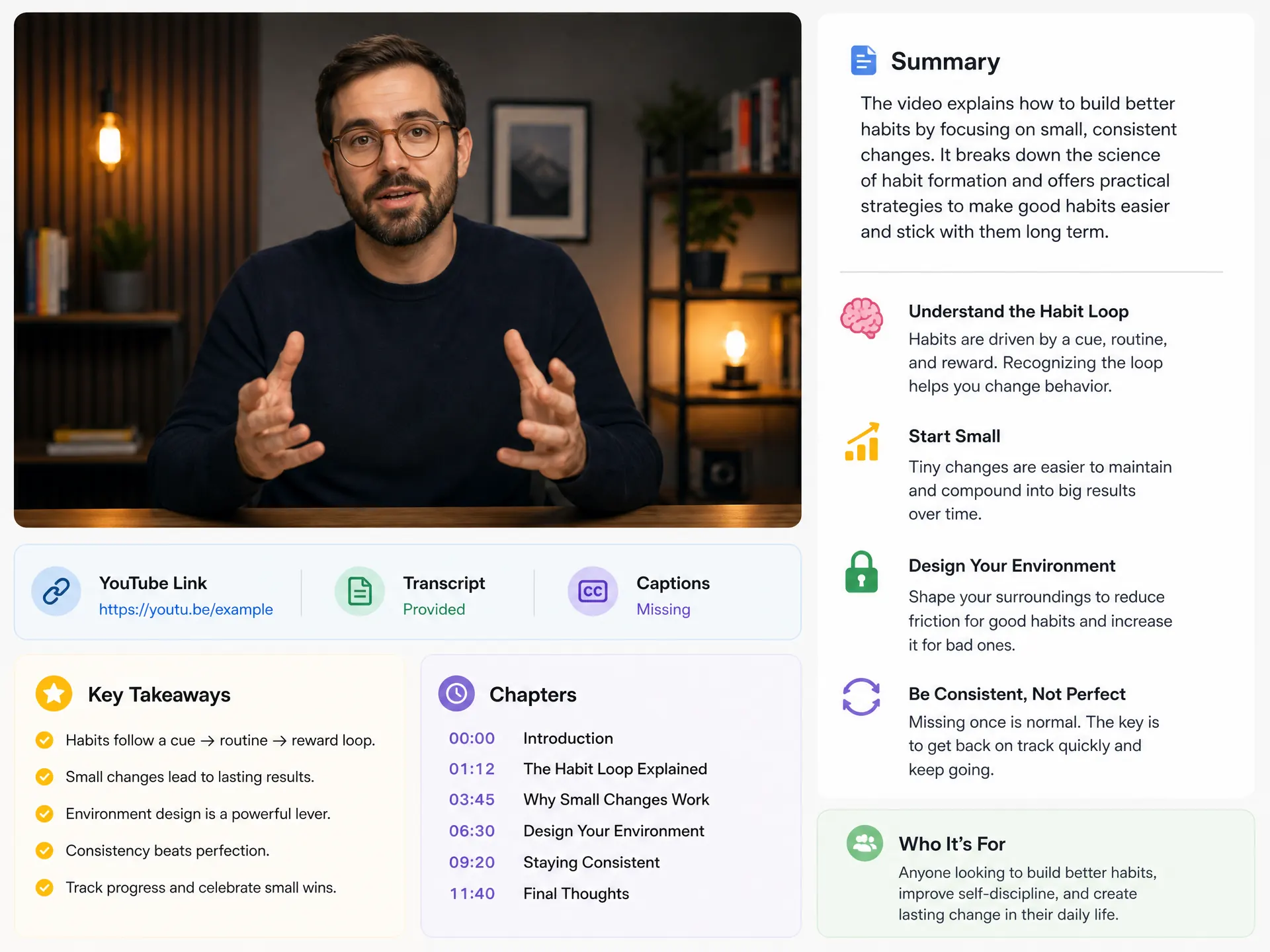
To get a YouTube video's full text, check its description for “Show transcript” first. If a caption track is available, YouTube can display its text alongside the video. If you need an exportable file, use the YouTube transcript tool. When no usable track exists, the alternative is to transcribe the spoken audio, rather than extract captions.
This guide helps you choose the right source and preserve a usable record. For detailed troubleshooting of missing captions, see the no-captions guide.
Three sources of transcript text
| Source | What you receive | What needs checking |
|---|---|---|
| Creator-provided captions | Text uploaded or edited by the channel | Language, completeness, and whether wording was edited |
| YouTube automatic captions | Text recognized from speech by YouTube | Names, numbers, accents, and overlapping speakers |
| Audio transcription | Newly recognized text from accessible audio | Audio quality, coverage, terminology, and timing |
Creator-provided captions are not necessarily a verbatim record: a creator may simplify dialogue for readability. Automatic captions are not proof of human review. YouTube itself recommends checking their wording because speech recognition can make mistakes. YouTube automatic-caption guidance
Method 1: Read the transcript on YouTube
- Open the video you want to read.
- Expand its description and look for Show transcript. The placement can vary between devices and interface versions.
- Open the transcript and check which language is displayed, if there is a choice.
- Select a line to return to that point in the video.
- Keep the original URL with any excerpt you save so that you can verify it later.
YouTube documents transcript viewing for videos that have captions and supports jumping to a passage by selecting its text. It does not promise that every video will have a transcript. YouTube transcript instructions
This method is useful when you only need to locate a quotation or read along. For a long transcript that you plan to edit, archive, or use as subtitles, a file-based workflow is easier to manage.
Method 2: Get an exportable transcript in SnapVee
Open the YouTube transcript generator, paste the public video URL, and submit it. Check the detected video before processing, especially when you copied a link from a playlist or shared message. The service needs an accessible source; a URL does not grant access to private or unavailable content.
After processing, compare the first section, a middle section, and the ending with the source. Check that the text covers the expected video and is in the language you intended. Where no usable caption track is available, speech transcription requires audio processing rather than simply retrieving text.
Choose the available export that matches your next task:
| Your next task | Useful output |
|---|---|
| Read, search, or edit the wording | TXT or the transcript text |
| Add timed captions to an editor | SRT or VTT |
| Keep chapter notes and key ideas | A separate summary exported as Markdown |
Export access, processing allowances, and supported task lengths depend on the current product and account. Check the result page and pricing before submitting a long recording. If you own an appropriate local recording, the general transcription tool also provides an upload workflow.
Turn raw text into a record you can trust
Before correcting punctuation, preserve one original copy. Add the video title, source URL, language, and the transcript source when known. Mark uncertain words instead of silently guessing them.
The following is an illustrative review template, not output from a tested video:
Video: [title]
Source: [original URL]
Language: [language]
Text source: [creator captions / automatic captions / audio / unknown]

00:00  [opening passage]
12:35  [passage containing a technical term]
        Review: verify the term against the audio.
Check quotations word for word. In a technical lecture, also replay formulas, units, and references to on-screen code: speech alone may not contain everything shown on screen. Keep timestamps in your working copy even if you remove them from a reading copy.
From transcript to summary
A transcript records wording; a summary selects and reorganizes ideas. Start with the YouTube summarizer when you want chapters, then return to the transcript for precise quotations. For reusable notes, continue to YouTube to Markdown and the Notion and Obsidian guide.
If you plan to use a general assistant, read whether ChatGPT can summarize YouTube videos or the Gemini workflow before assuming a pasted link exposes the entire video.
Common questions
Are captions burned into the picture a downloadable transcript?
No. Text visible inside the video image is different from a selectable caption track. Its presence does not guarantee transcript text is available. Audio transcription follows speech; it should not be treated as extraction of every word visible on screen.
Does getting a transcript include translation?
Not necessarily. First confirm the original-language text. Translation creates another version and can change terminology, so keep the source transcript for checking.
Can I skip the transcript and save only the summary?
Yes, if you only need an overview. Keep the source link and important timestamps so that a condensed statement can still be checked against what the speaker actually said.
About the author
SnapVee Team
Product guides
Official guides to using SnapVee's tools and exporting your results.