Can Gemini Summarize YouTube Videos? Steps, Sources and Limits
Learn how Gemini Apps handles YouTube questions, when to use captions or a video upload, and how to verify a summary before turning it into notes.
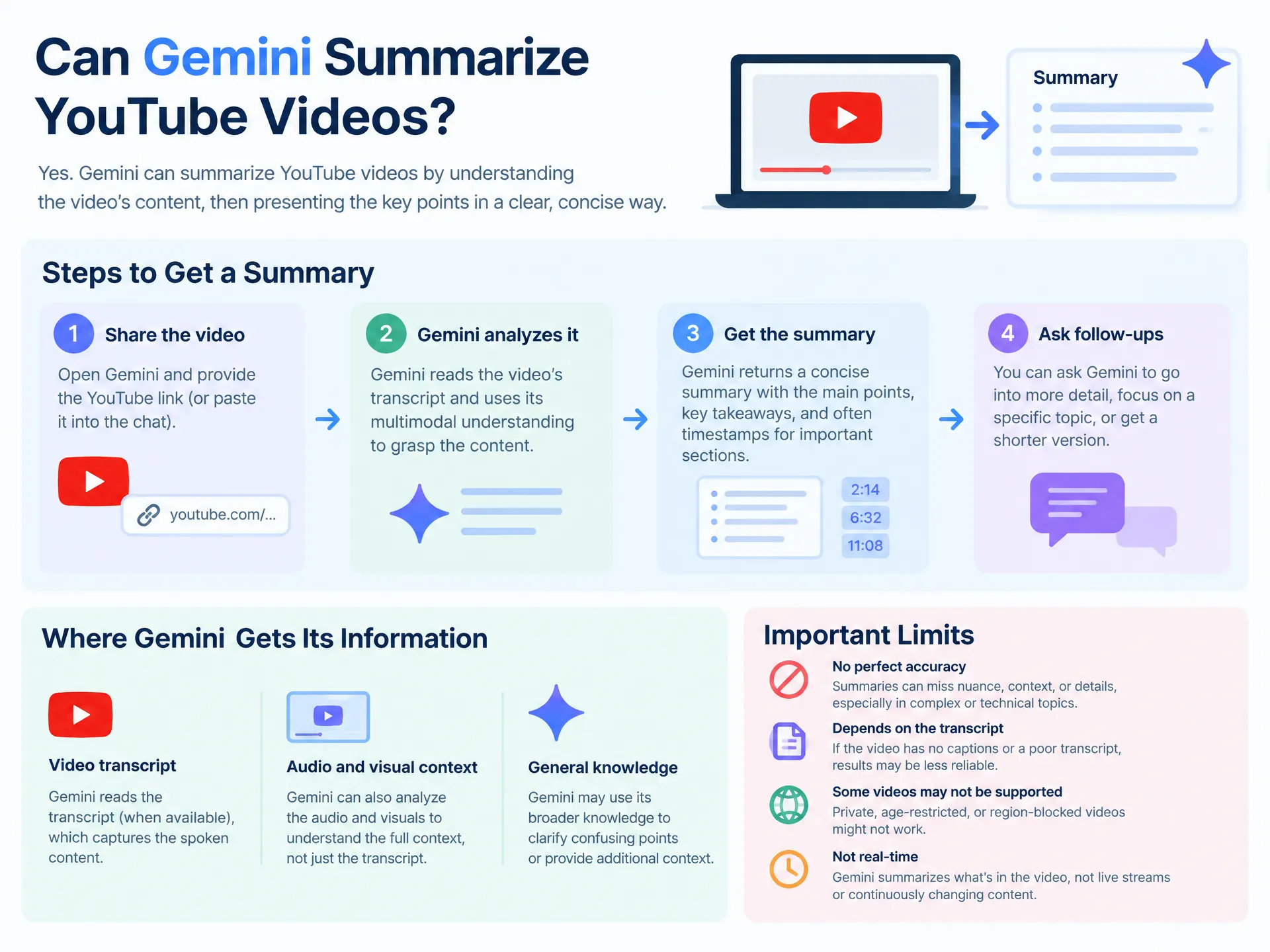
Yes. Google documents YouTube discovery and questions about videos in Gemini Apps. You can try a video link or ask Gemini to find a video and summarize it. You should still verify which video and which content the answer used before treating it as a transcript, an exact quotation, or complete course notes.
This guide checks official documentation as of September 12, 2026 and provides a repeatable workflow. We did not complete a live Gemini video-summary test for this article, so the examples below are prompts and review criteria, not measured product results.
Three inputs, three different checks
| What you provide | Recommended approach | What to verify |
|---|---|---|
| A public YouTube link | Ask about the specified video in Gemini Apps | Correct video, relevant source content, and unsupported claims |
| Existing captions or a transcript | Paste or upload the text and constrain the summary to it | Caption errors, missing sections, and source timestamps |
| A video without captions | Try a supported video upload or transcribe its audio first | Actual file support, audio accuracy, and visual details |
Google describes the YouTube feature as using public YouTube information. That is not a promise that every URL will yield a complete, timestamped transcript. See the official YouTube content guide.
Start with the YouTube link
- Open Gemini Apps and sign in. Check whether the relevant YouTube feature is available for the current account.
- Paste one public video URL. State the title when there are several uploads or versions.
- Ask Gemini to identify the source it can use before requesting a summary.
- Request a specific output: a short overview, chapter notes, or answers to a few learning questions.
- Open the original video and verify the answer against the section it describes.
Google's current help lists Keep Activity as a requirement for the YouTube feature and excludes certain surfaces such as Live chats. If the feature is unavailable, read the current requirements before changing your settings; a transcript-based workflow is an alternative.
A useful first prompt is:
Summarize this YouTube video: [URL].
Confirm the title and identify the source content available to you.
Give the main argument, three supporting points, and open questions.
Use timestamps only when they are supported by the source.
If a section is inaccessible, mark it as missing instead of guessing.
If Gemini cannot use the URL, Google's documented flow also allows asking it to find a video and then asking about that result. Confirm the returned video is the same upload; different edits can have different timestamps.
Use captions when you need traceable notes
For a lecture, interview, or quotation-heavy task, a transcript gives you a visible source to inspect. Open YouTube's transcript when available, or use the YouTube transcript tool. The transcript methods guide explains creator captions, automatic captions, and speech recognition.
Keep the original language and timestamps with your source. If you want notes in another language, request that language explicitly and ask Gemini to preserve proper names. For a long transcript, split at topic boundaries, summarize each part, and combine those section notes afterward. Do not let an early overview substitute for checking the ending.
Use only this supplied transcript, not other videos or web pages.
Write chapter notes with the timestamps already present in the source.
For each chapter, include: claim, explanation, example, and uncertainty.
Keep cancelled proposals separate from decisions.
If the source does not give an owner or deadline, leave it unspecified.
What if the video has no captions?
Missing captions do not automatically make every Gemini workflow impossible. Google documents video-file uploads in Gemini Apps itself, separately from YouTube links. A file you are allowed to use can be attached through the upload menu when supported; consult the current file upload documentation for applicable format, size, duration, and account limits.
This is not the same as the Gemini API. An API example accepting a YouTube URL does not establish what your Gemini web account can do.
If a link or attachment does not provide usable source content, transcribe the audio first and review that text. Follow the video-without-captions guide. Check names, negations, quantities, and overlapping speech before asking for a summary. Information shown only on a slide still needs a visual check.
Check the output before relying on it
Use a short video you know well for your first check. Record the video URL, date, account surface, selected mode, prompt, and whether you provided a link, text, or file. That makes the result repeatable without pretending that one successful example proves universal support.
Verify these details:
- Is the summary about the exact upload, rather than another video on the same topic?
- Can each important point be located in the original content?
- Are timestamps copied from evidence rather than invented?
- Are quotations exact, and are summaries clearly paraphrases?
- Does a supposed action item actually have an owner and a commitment in the source?
Keep a list of missing or uncertain sections. A fluent answer is useful only when its source coverage matches the task.
Move from answers to reusable notes
For a workflow centered on video chapters and exports, open the YouTube summarizer. Use YouTube to Markdown when you want a note file, and follow the Notion and Obsidian guide for the actual import steps.
You can also compare the ChatGPT link and text-input check. The practical choice is the workflow that gives you verifiable source content and a useful result, with the fewest unnecessary copying steps.
About the author
SnapVee Team
Product guides
Official guides to using SnapVee's tools and exporting your results.