Paste a public YouTube link
Start with a video or course link. When captions are unavailable, accessible speech can still be transcribed.
Convert YouTube videos into Markdown notes with chapters and timestamps. Download a .md file for Notion import or your Obsidian vault, with separate mindmap exports.
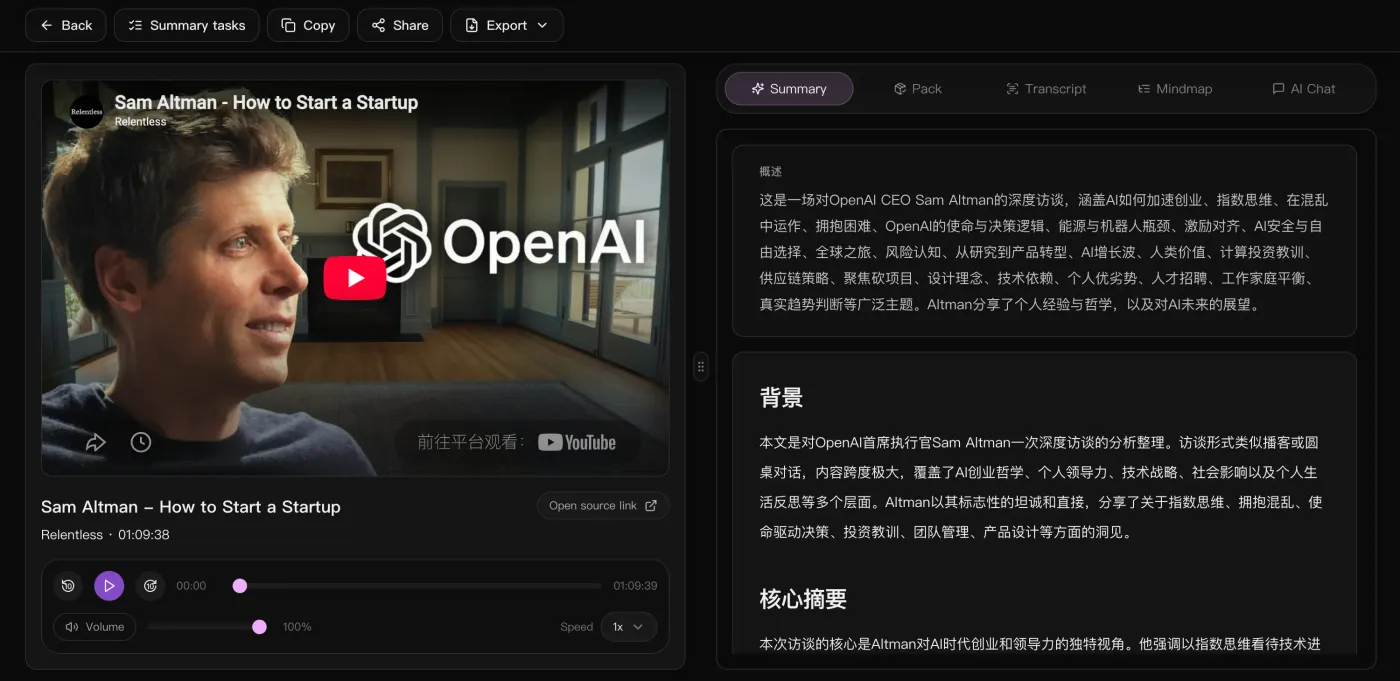
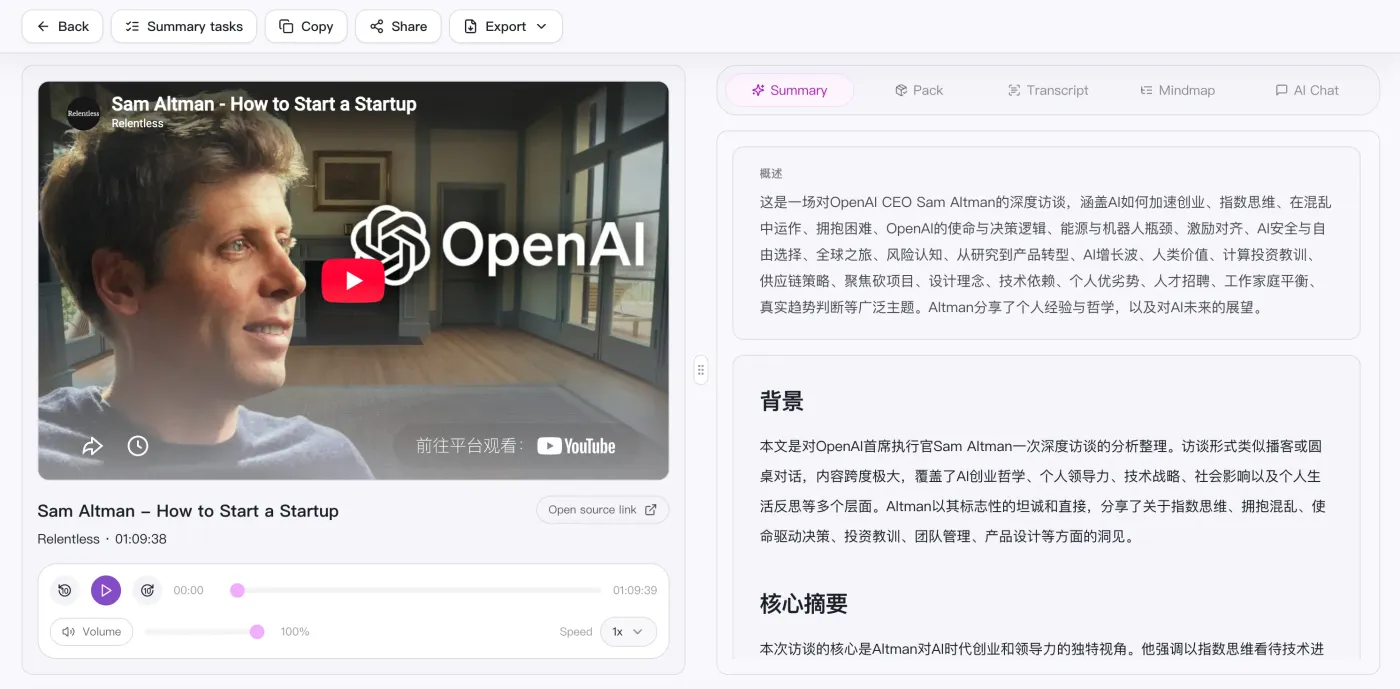
Inside the workspace
The video on the left to check anything against, the overview, background and key takeaways on the right — with the full text, the mindmap and an AI chat one tab away.
Convert YouTube videos into Markdown notes with chapters and timestamps. Download a .md file for Notion import or your Obsidian vault, with separate mindmap exports.
Start with a video or course link. When captions are unavailable, accessible speech can still be transcribed.
Check names, numbers and important quotes against the video before relying on the notes.
Review the summary, examples and action items alongside the transcript. Add your own notes where context is missing.
Import a .md file into Notion or save it in Obsidian. Mermaid rendering depends on the editor; SVG is an alternative for the diagram.
Review the result as study notes, a work brief or an action list. Export Markdown to keep the notes in your preferred editor.
Paste a public link or upload a local video / audio file.
Auto-transcribe and generate an overview, chapters, and mindmap.
Keep chatting with AI about the content to dig into points and actions.
Take the summary, mindmap, and action list to reuse anywhere.
Supported platforms
Side by side
Compare input methods and outputs for video notes, recordings, and meetings.
| What matters | SnapVee | ScreenApp | Notta | NoteGPT |
|---|---|---|---|---|
| Getting started | Paste a public link or upload a file in the browser | Paste a video URL, upload a file, or record | Join a meeting or upload a recording | Paste a YouTube link online or use the extension |
| Best input | Long videos, podcasts and local audio or video | Public video links, uploaded files, and recordings | Live meetings and voice notes | YouTube videos above all |
| What you get | Overview, timestamped chapters, key points, Mermaid mindmap, Markdown | Transcripts, summaries, and highlights | Transcript and meeting minutes | Transcripts, summaries, and mindmaps |
| Digging deeper | Keep asking the AI about the full text, switch output language | Ask about the recording | Search across past meetings | Ask about the video |
| After the summary | Subtitles, convert, breakdown, social formatting — same place | Share the recording back | Sync notes to team tools | Export the note |
ScreenApp and NoteGPT input options checked against their official pages on September 12, 2026. This is a workflow overview, not an exhaustive feature or plan comparison.ScreenAppNoteGPT
Read the full comparison
You have the notes. Now what?
Same account, same source — export subtitles, break down why it worked, convert the file, lay it out for social. No tool switching.
Can't find an answer? Reach out to our support team anytime.
Guides
Follow the steps for your next task, from processing a video to saving the result.
Start with a public link. The current focus is making the summary, reading, and export flow solid before anything else.