AI Video Summary Guide: Platforms, Workflow, Outputs, and Export
SnapVee Video Summary supports YouTube, TikTok, BiliBili, Xiaoyuzhou, Apple Podcasts, Ximalaya, and local files — learn how to generate an overview, chapters, transcript, keywords, action items, follow-up chat, and a Mermaid mindmap, then export Markdown and SVG.
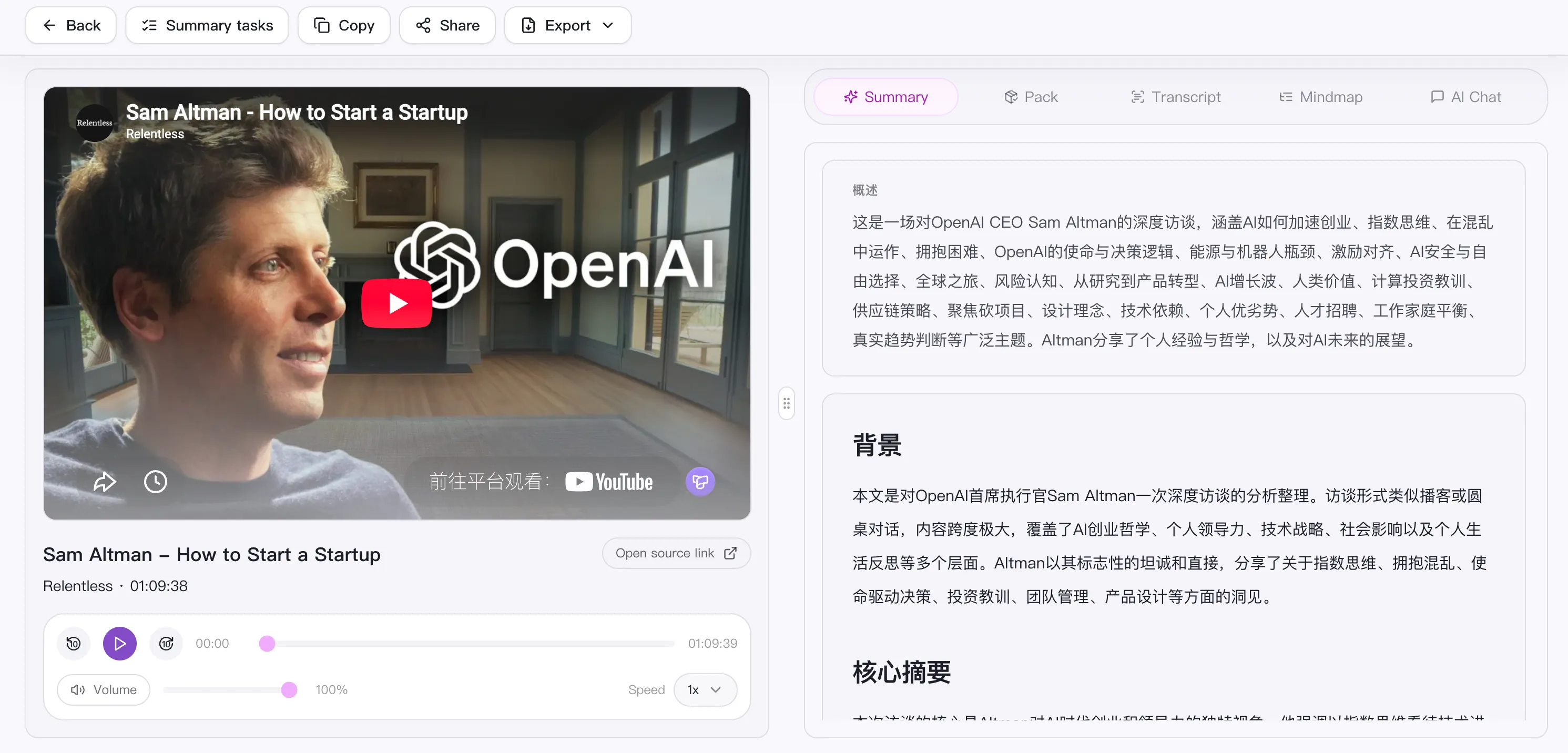
For interviews, tutorials, courses, and podcasts, watching end to end is rarely the fastest first step. SnapVee Video Summary turns a public link into an overview, chapters, transcript, keywords, action items, follow-up chat, and a Mermaid mindmap — so you understand the structure first, then decide what deserves a deeper look.
Which platforms are supported
Video Summary accepts two kinds of sources:
- Platform links: YouTube, TikTok, BiliBili, Xiaoyuzhou, Apple Podcasts, and Ximalaya.
- Local files: upload local audio or video (up to 2GB per file).
For batches, submit up to 3 links at once, one link per line.
How to use it
- Open Video Summary.
- Paste an authorized public link, or switch to uploading a local audio/video file.
- Choose the output language.
- Create the task and let the asynchronous queue run transcription, summary, and mindmap.
- Read the overview first to decide whether the content is worth a deeper pass.
- Jump through the timestamped chapters and use the mindmap to grasp the overall structure.
- Check the keywords and action items.
- Use follow-up chat for the parts you need to dig into.
Duration and credits
Per-item duration limit: up to 60 minutes on Free, up to 180 minutes on Pro. Summary bills by video duration (per minute), so check your credit balance before long videos.
Long videos run asynchronously — after submitting, you can do something else and return to the recent-task list to refresh progress later.
What the result includes
| Output | Best use |
|---|---|
| Overview | Decide quickly whether the video is worth deeper review |
| Timestamped chapters | Jump straight to the useful sections |
| Original-language transcript | Search and check the source wording |
| Keywords and action items | Build a study plan or an operations checklist |
| Follow-up AI chat | Ask focused questions about the current video |
| Mermaid mindmap | Grasp the structure before reading every detail |
What you can do after summarizing
Once you have the structured result, you can:
- Ask follow-up questions: chat about the current video to break it into arguments, checklists, or a study guide.
- Export and reuse: send notes to a knowledge base as Markdown, export the mindmap as SVG, or export the full transcript as text.
- Turn it into publishable content: use the overview and chapters as a skeleton for an article, notes, or a script.
- Pair it with subtitle transcription: when you also need line-by-line captions or translation, switch to Subtitle Transcription.
Prompt ideas for follow-up chat
Questions tied to the content work best:
List the speaker's three main arguments and the evidence for each one.
Turn this tutorial into a step-by-step checklist.
Which chapters contain the most reusable examples?
Create a study guide with key terms, questions, and next actions.
Which export formats are supported
- Markdown: move notes into docs, a wiki, Notion, or Obsidian — or use YouTube to Markdown to produce a Markdown draft directly.
- SVG: export the Mermaid mindmap as a vector graphic for docs or slides.
- Transcript: export the full source text for search, citation, or further editing.
Use cases
| Scenario | How Video Summary helps |
|---|---|
| Courses and lectures | Get an overview and chapters instead of watching every minute |
| Interviews and podcasts | Turn Xiaoyuzhou, Apple Podcasts, and similar audio into structured notes |
| Industry research | Extract arguments, data, and keywords fast, then compare across videos |
| Meetings and online classes | Generate an action-item checklist and jump back via timestamps |
| Topic and competitor scans | Batch-summarize several videos to judge what's worth a deeper look |
| Knowledge-base archiving | Export Markdown into team docs or personal notes |
How it compares: ScreenApp, Notta, NoteGPT
Compare input methods and outputs for video notes, recordings, and meetings.
| What matters | SnapVee | ScreenApp | Notta | NoteGPT |
|---|---|---|---|---|
| Getting started | Paste a public link or upload a file in the browser | Paste a video URL, upload a file, or record | Join a meeting or upload a recording | Paste a YouTube link online or use the extension |
| Best input | Long videos, podcasts and local audio or video | Public video links, uploaded files, and recordings | Live meetings and voice notes | YouTube videos above all |
| What you get | Overview, timestamped chapters, key points, Mermaid mindmap, Markdown | Transcripts, summaries, and highlights | Transcript and meeting minutes | Transcripts, summaries, and mindmaps |
| Digging deeper | Keep asking the AI about the full text, switch output language | Ask about the recording | Search across past meetings | Ask about the video |
| After the summary | Subtitles, convert, breakdown, social formatting — same place | Share the recording back | Sync notes to team tools | Export the note |
ScreenApp and NoteGPT input options checked against their official pages on September 12, 2026. This is a workflow overview, not an exhaustive feature or plan comparison.
Summary or subtitle transcription?
- Use Video Summary when you need understanding — overview, chapters, keywords, action items, chat, and a mindmap.
- Use Subtitle Transcription when you need publishable, editor-ready captions — line-by-line timing, translation, or SRT export.
Source check
Use a public link that you are allowed to process. SnapVee is not designed to bypass paid, private, regional, age-restricted, or login-controlled content.
Related guides
About the author

Jason Jiang
Product and engineering lead
Maintains SnapVee's core product features, ships platform support and product updates, and writes official tutorials and comparison content.