Best YouTube Transcript Tool in 2026: SnapVee vs YouTube Captions vs DownSub vs NoteGPT vs Otter.ai
Compare the best YouTube transcript and subtitle tools in 2026. See why downloading existing captions often fails, and how to turn a link into editable SRT, bilingual subtitles, and a summary.
Best YouTube Transcript Tool in 2026?
If you are looking for the best YouTube transcript tool, you probably need more than on-screen captions. You want text you can actually use: an SRT for editing, bilingual subtitles, course notes, or a script for reuse. YouTube's built-in auto captions are free, but they are hard to export as a publishable file. Tools like DownSub and NoteGPT are fast when captions already exist, and stall when they do not. Otter.ai is built for meetings, not for pasting a YouTube URL.
This guide compares the five options people weigh most in 2026: SnapVee, YouTube Captions, DownSub, NoteGPT, and Otter.ai. Start with the table, then see who each tool is for. Use the product nav on the left to jump to a section.
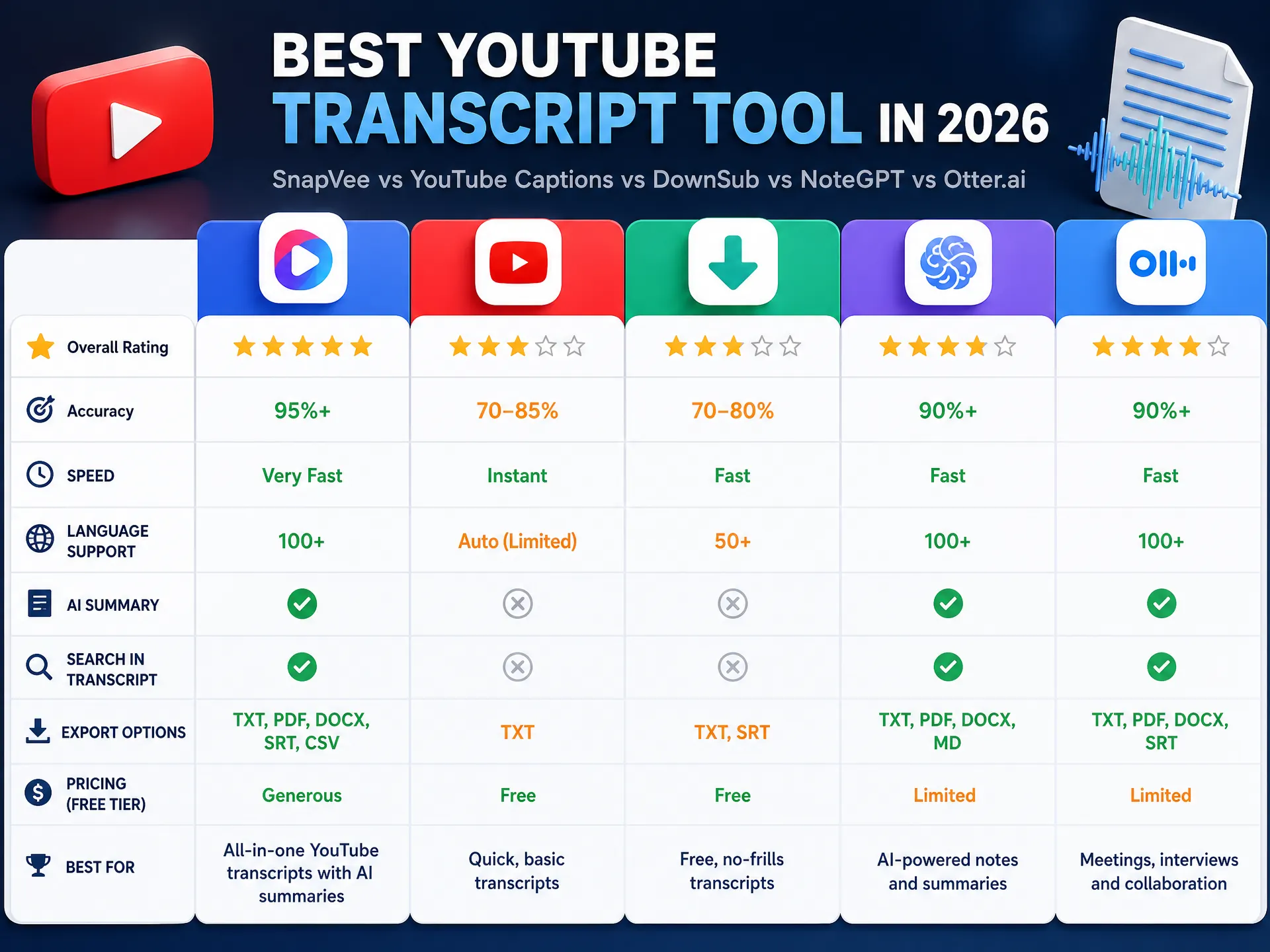
Quick comparison
| Feature | SnapVee | YouTube Captions | DownSub | NoteGPT | Otter.ai |
|---|---|---|---|---|---|
| Paste a link to transcribe | ✅ | ❌ Watch-page only | ⚠️ Existing captions | ⚠️ Relies on captions | ❌ Upload audio first |
| AI fallback if no captions | ✅ | Only if auto-captions on | ❌ | ❌ | ✅ After you import |
| Bilingual QA / translation | ✅ Source, translation, bilingual views | Limited auto-translate | ❌ | Summary-first | English transcript first |
| Export SRT / VTT | ✅ Built in | ❌ Needs a third party | ✅ Existing track | ⚠️ Notes export | ⚠️ Meeting notes |
| Timeline editing | ✅ | ❌ | ❌ | ❌ | Limited |
| After the transcript | Summary, download, publishing | Watching only | Caption file only | Summary and Q&A | Meeting recap |
| Mac / phone | ✅ Browser | ✅ | ✅ Web | ✅ Extension / web | ✅ App |
| Best for | YouTube and social video subtitles | Watching in the player | Videos that already have captions | Notes while watching | Live meetings |
Marks reflect publicly observable behaviour in 2026. Otter.ai is still the pick for live meetings; YouTube Captions are enough if you only need to follow along.
Why “download YouTube subtitles” often fails in 2026
Searches for a YouTube transcript usually hit one of three walls:
- The video has no usable captions – the creator turned them off, or auto-captions are too poor. DownSub and YouTube Transcript-style sites only scrape an existing track, so they fail when there is nothing to scrape.
- Auto captions are not a finished file – they help you follow the gist. Names, sentence breaks, and timing are rarely publish-ready, and they are not a bilingual SRT.
- A meeting transcriber is not a video-link tool – Otter.ai and Notta shine on live calls. For YouTube you typically download the audio, then upload it — an extra step, with no bilingual subtitle QA.
That is why a dedicated workflow is more stable. Open YouTube subtitle transcription, paste a public link, and SnapVee prefers the platform's existing captions; if none exist it falls back to AI speech transcription, then translation, bilingual review, and SRT / VTT export. Full steps: Subtitle Transcription Guide.
SnapVee
SnapVee subtitle transcription is not a “YouTube caption downloader.” It is a creator workbench: the same link can be downloaded, transcribed, translated, then sent to Video Summary.
Strengths
- Paste a YouTube link – no need to rip audio into a meeting app first. Public URLs go into YouTube subtitle transcription.
- Captions when they exist, AI when they do not – platform tracks first, speech transcription as fallback, still with a timestamped source.
- Source / translation / bilingual – segment-by-segment translation that keeps the timeline, for multilingual publishing and QA.
- Export-ready files – SRT, VTT, ASS, Markdown, TXT, JSON, as source, translated, or bilingual.
- Keep going in the same product – use AI video summary to understand structure, or YouTube Downloads: Quality Options and Plan Limits for the file.
- Not Windows-only – works in the browser on Mac and phone.
Watch-outs
- Per-item limits: 60 minutes on Free, 180 on Pro; long jobs use minutes from your balance.
- Only process public content you are allowed to use. Do not use it to bypass membership, private, or region locks.
YouTube Captions
YouTube's own captions (creator-uploaded tracks and auto captions) are the lowest-friction way to watch: open the video and read along. Some languages can auto-translate in the player.
Strengths
- Free, no third-party tool.
- Good enough to follow clear speech, especially English.
Limits
- Not a publishing subtitle – no editor-style timeline, and exporting SRT needs another site.
- No captions, no text – if the creator disabled captions and auto-captions are unavailable, the player cannot help.
- Weak bilingual QA – auto-translate is fine to skim, not for consistent terminology line by line.
Best when you only watch on YouTube. Once the text has to enter an editor, a course, or a republish flow, you need a dedicated transcription tool.
DownSub
DownSub and similar “YouTube subtitle download” sites save an existing caption track as SRT or TXT. When official or auto captions are already there, this is the fastest path.
Strengths
- Fast export when a track exists.
- Web-based, almost no learning curve.
Limits
- No speech transcription – no track means failure, which is the usual “DownSub cannot download subtitles” case.
- No translation QA bench – you get the raw track; bilingual review, line breaks, and term consistency happen elsewhere.
- Download is the whole product – no summary, no 4K save, no publishing layout.
Best when you already know the video has captions and you only need the file. If there are no captions, or you need a bilingual deliverable, SnapVee is the more complete path.
NoteGPT
NoteGPT, Glasp, and YouTube Transcript-style tools pull the on-page transcript into readable notes, often with a summary and Q&A. They are handy when you want to understand first, then decide whether to go deeper.
Strengths
- Transcript and takeaways on the YouTube page or in an extension.
- Efficient for study notes and a quick “is this worth my time?” check.
Limits
- Still depends on existing captions – no track, same stall as DownSub.
- Notes, not subtitle files – strong on summaries and questions; weak on editor-ready SRT and bilingual timing.
- Stops at understanding – publishing subtitles or saving a 4K file still needs another tool.
Best for notes while watching. For publishable subtitles see the Subtitle Transcription Guide; for chapters and a mindmap see AI Video Summary.
Otter.ai
Otter.ai is the reference for live meeting notes: join Zoom or Meet and get a running transcript. Notta and Descript often show up in the same comparison, but they are not YouTube-link tools either.
Strengths
- Live meetings, team sharing, and search after the call.
- Mature speech recognition for your own recordings and uploads.
Limits
- Not link-first – YouTube usually means download audio, then upload.
- Meeting notes, not subtitle shipping – bilingual SRT and timeline QA are not the core loop.
- Transcript lives apart from download and summary – you still switch tools for those.
Full comparisons: SnapVee vs Otter.ai · SnapVee vs Notta · SnapVee vs Descript.
Keep Otter.ai or Notta for recurring meetings. Stay in Descript if editing from a transcript is the job. To turn YouTube, TikTok, or Bilibili links into exportable subtitles, SnapVee is the better fit.
Who should use which?
- Just follow along on YouTube → YouTube Captions.
- The video already has captions; you only need the SRT → DownSub.
- Notes and a quick verdict while watching → NoteGPT.
- Live meetings every week → Otter.ai / Notta.
- Burn captions on a timeline → CapCut or Descript.
- Turn YouTube (and social / podcast links) into editable, translatable, exportable subtitles — and continue into a summary or download → SnapVee.
Verdict: the best YouTube transcript tool in 2026
No single caption downloader covers every job. YouTube Captions are for watching. DownSub is for “track already exists, just give me the file.” NoteGPT is for notes. Otter.ai is for meetings.
If the goal is a stable path from YouTube speech to a finished subtitle in 2026, SnapVee is the creator-oriented option: paste a link, use platform captions or AI transcription, review bilingual lines, export SRT, and stay in the same workspace for video summary and YouTube Downloads: Quality Options and Plan Limits. For “no captions on this video,” “DownSub failed,” or “my meeting app does not take a URL,” SnapVee is the more complete YouTube transcription choice.
Try YouTube transcription free →
Related reading:
About the author

Jason Jiang
Product and engineering lead
Maintains SnapVee's core product features, ships platform support and product updates, and writes official tutorials and comparison content.