AI Video Summary Guide: Platforms, Workflow, Outputs, and Export
SnapVee Video Summary supports YouTube, TikTok, BiliBili, Xiaoyuzhou, Apple Podcasts, Ximalaya, and local files — learn how to generate an overview, chapters, transcript, keywords, action items, follow-up chat, and a Mermaid mindmap, then export Markdown and SVG.
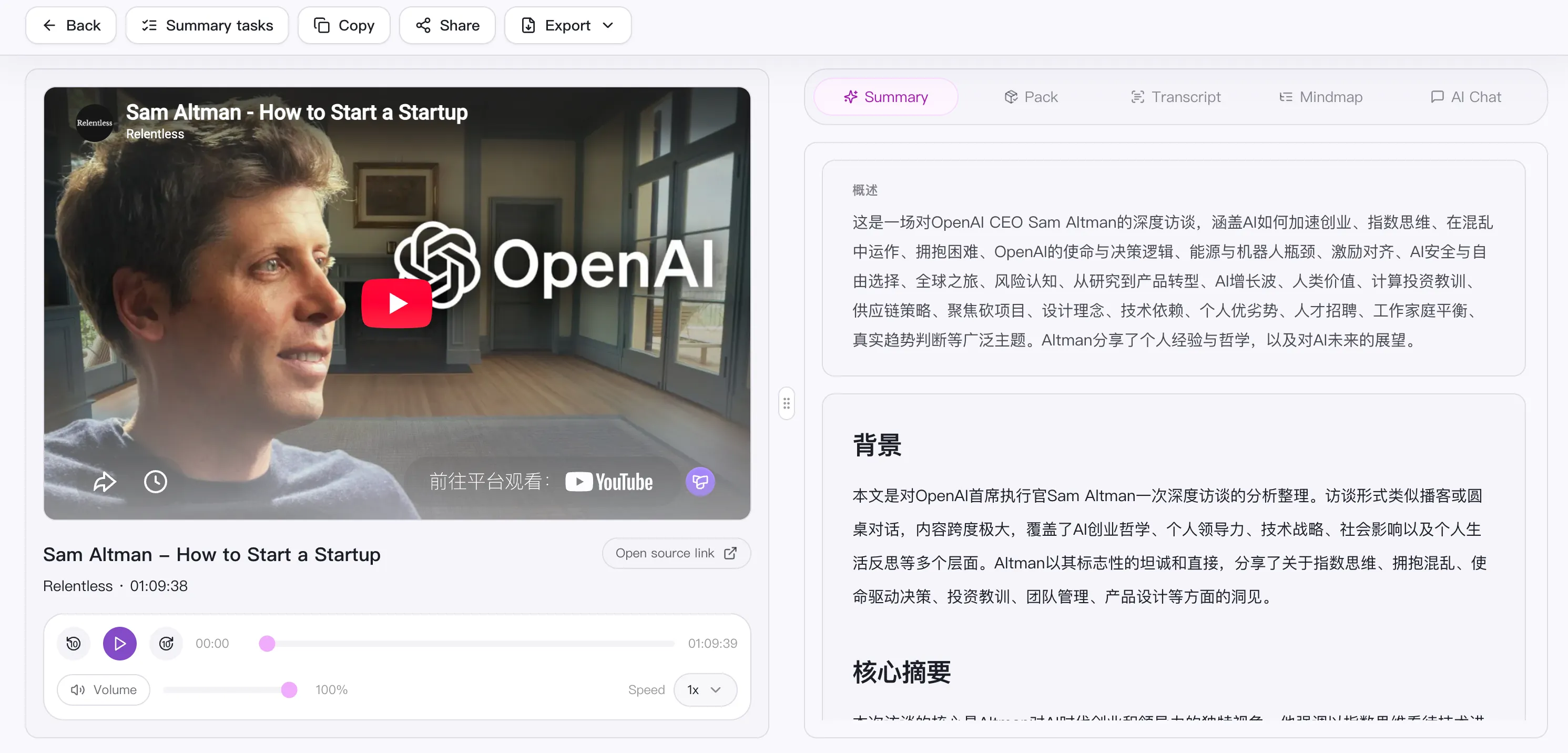
For interviews, tutorials, courses, and podcasts, watching end to end is rarely the fastest first step. SnapVee Video Summary turns a public link into an overview, chapters, transcript, keywords, action items, follow-up chat, and a Mermaid mindmap — so you understand the structure first, then decide what deserves a deeper look.
Which platforms are supported
Video Summary accepts two kinds of sources:
- Platform links: YouTube, TikTok, BiliBili, Xiaoyuzhou, Apple Podcasts, and Ximalaya.
- Local files: upload local audio or video (up to 2GB per file).
For batches, submit up to 3 links at once, one link per line.
How to use it
- Open Video Summary.
- Paste an authorized public link, or switch to uploading a local audio/video file.
- Choose the output language.
- Create the task and let the asynchronous queue run transcription, summary, and mindmap.
- Read the overview first to decide whether the content is worth a deeper pass.
- Jump through the timestamped chapters and use the mindmap to grasp the overall structure.
- Check the keywords and action items.
- Use follow-up chat for the parts you need to dig into.
Duration and credits
Per-item duration limit: up to 60 minutes on Free, up to 180 minutes on Pro. Summary bills by video duration (per minute), so check your credit balance before long videos.
Long videos run asynchronously — after submitting, you can do something else and return to the recent-task list to refresh progress later.
What the result includes
| Output | Best use |
|---|---|
| Overview | Decide quickly whether the video is worth deeper review |
| Timestamped chapters | Jump straight to the useful sections |
| Original-language transcript | Search and check the source wording |
| Keywords and action items | Build a study plan or an operations checklist |
| Follow-up AI chat | Ask focused questions about the current video |
| Mermaid mindmap | Grasp the structure before reading every detail |
What you can do after summarizing
Once you have the structured result, you can:
- Ask follow-up questions: chat about the current video to break it into arguments, checklists, or a study guide.
- Export and reuse: send notes to a knowledge base as Markdown, export the mindmap as SVG, or export the full transcript as text.
- Turn it into publishable content: use the overview and chapters as a skeleton for an article, notes, or a script.
- Pair it with subtitle transcription: when you also need line-by-line captions or translation, switch to Subtitle Transcription.
Prompt ideas for follow-up chat
Questions tied to the content work best:
List the speaker's three main arguments and the evidence for each one.
Turn this tutorial into a step-by-step checklist.
Which chapters contain the most reusable examples?
Create a study guide with key terms, questions, and next actions.
Which export formats are supported
- Markdown: move notes into docs, a wiki, Notion, or Obsidian — or use YouTube to Markdown to produce a Markdown draft directly.
- SVG: export the Mermaid mindmap as a vector graphic for docs or slides.
- Transcript: export the full source text for search, citation, or further editing.
Use cases
| Scenario | How Video Summary helps |
|---|---|
| Courses and lectures | Get an overview and chapters instead of watching every minute |
| Interviews and podcasts | Turn Xiaoyuzhou, Apple Podcasts, and similar audio into structured notes |
| Industry research | Extract arguments, data, and keywords fast, then compare across videos |
| Meetings and online classes | Generate an action-item checklist and jump back via timestamps |
| Topic and competitor scans | Batch-summarize several videos to judge what's worth a deeper look |
| Knowledge-base archiving | Export Markdown into team docs or personal notes |
How it compares: ScreenApp, Notta, NoteGPT
Compare input methods and outputs for video notes, recordings, and meetings.
| What matters | SnapVee | ScreenApp | Notta | NoteGPT |
|---|---|---|---|---|
| Getting started | Paste a public link or upload a file in the browser | Paste a video URL, upload a file, or record | Join a meeting or upload a recording | Paste a YouTube link online or use the extension |
| Best input | Long videos, podcasts and local audio or video | Public video links, uploaded files, and recordings | Live meetings and voice notes | YouTube videos above all |
| What you get | Overview, timestamped chapters, key points, Mermaid mindmap, Markdown | Transcripts, summaries, and highlights | Transcript and meeting minutes | Transcripts, summaries, and mindmaps |
| Digging deeper | Keep asking the AI about the full text, switch output language | Ask about the recording | Search across past meetings | Ask about the video |
| After the summary | Subtitles, convert, breakdown, social formatting — same place | Share the recording back | Sync notes to team tools | Export the note |
ScreenApp and NoteGPT input options checked against their official pages on September 12, 2026. This is a workflow overview, not an exhaustive feature or plan comparison.
Summary or subtitle transcription?
- Use Video Summary when you need understanding — overview, chapters, keywords, action items, chat, and a mindmap.
- Use Subtitle Transcription when you need publishable, editor-ready captions — line-by-line timing, translation, or SRT export.
Source check
Use a public link that you are allowed to process. SnapVee is not designed to bypass paid, private, regional, age-restricted, or login-controlled content.