How to Get MP3 Music: Audio Extraction, Conversion, and Rights
Turn your own videos, authorized public media, or local audio into MP3 while choosing sensible quality settings and respecting usage rights.
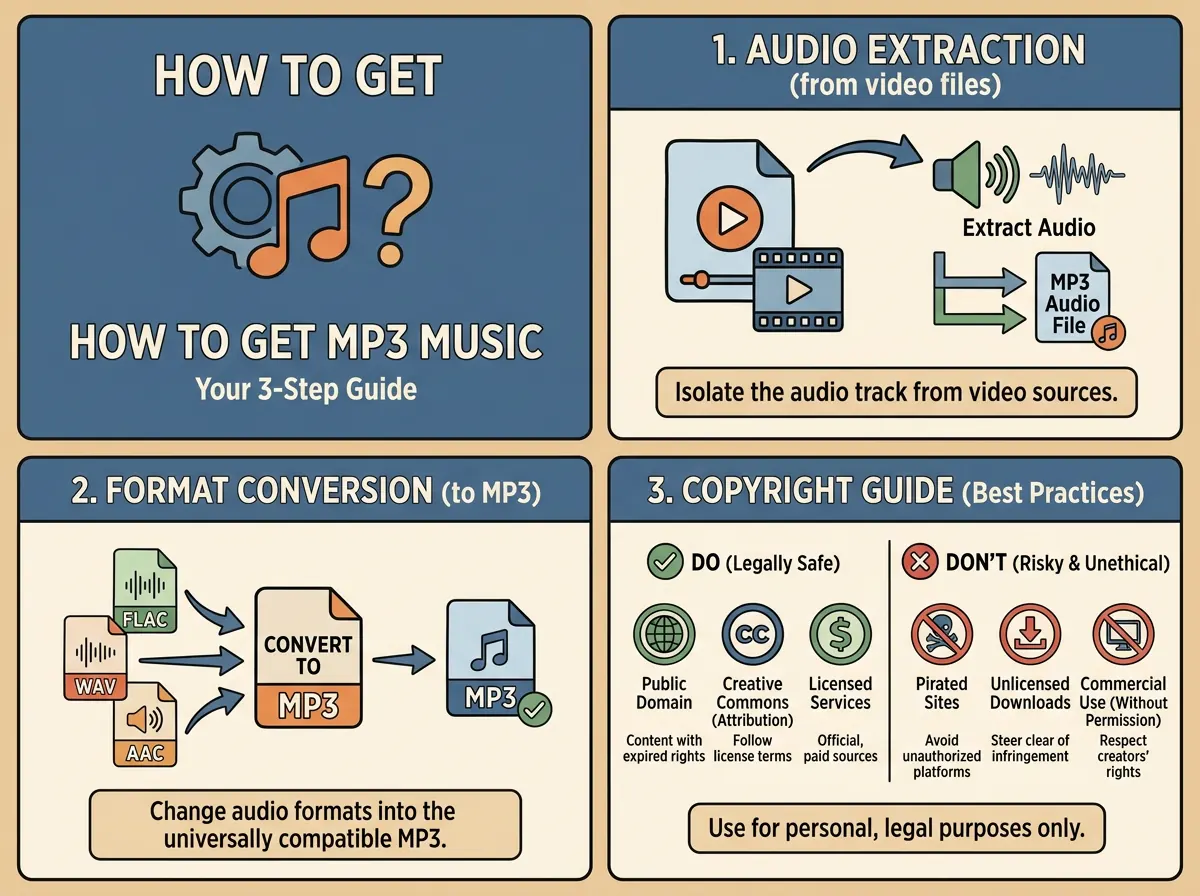
“Get this as an MP3” can mean three different jobs: find a legitimate source, extract or convert the audio, and confirm what you may do with the result. Your source might be a video you recorded, a creator-provided download, authorized public media, or a WAV, M4A, or FLAC file already on your computer.
The short answer: use a platform’s official download whenever it exists; convert a local file when you already have one; and extract an audio track only from supported public media you own or have permission to use. An offline download inside a streaming app is usually protected app storage, not a portable MP3.
Three reliable routes
| Source | Best route | Result |
|---|---|---|
| A song or recording you created | Official download or export | The closest available version to the master |
| Your own or authorized public video | Extract its audio track | MP3, M4A, or another available audio format |
| Local WAV, FLAC, M4A, or AAC | Convert locally | A more widely compatible MP3 |
1. Extract audio from a public video
Open the SnapVee download workbench and paste a supported public video URL. If parsing succeeds and an audio option is available, choose the quality and save it. Formats depend on the source platform, page visibility, and media file. If no audio option appears, changing .mp4 to .mp3 will not help—the extension does not change the codec.
Use this route for your own channel, content whose creator has given permission, or media that is clearly licensed for the intended reuse. Do not bypass a paywall, membership restriction, private link, or technical access control.
2. Convert a local audio file
If you already have WAV, FLAC, AAC, or M4A, open the audio format converter, select the file, and choose MP3. Conversion can change compatibility and size; it cannot restore detail that the source has already lost. Converting a 96 kbps file to 320 kbps creates a larger file, not better sound.
Keep a WAV or FLAC master, then export MP3 copies for playback, uploads, or delivery.
3. Use a creator-provided file
Music libraries, podcast sites, independent artists, and shared drives sometimes provide a direct MP3. Confirm that the page belongs to the rights holder or an authorized distributor, and save the license, receipt, or permission record. “Downloadable” does not automatically mean “approved for ads, redistribution, or commercial video.”
Which MP3 settings should you choose?
| Use | Practical setting |
|---|---|
| Speech or voice notes | Mono, 96–128 kbps |
| Podcast or interview | Mono, 96–128 kbps; stereo when music or space matters |
| Music or a video soundtrack | Stereo, 192–256 kbps |
| Further editing | Keep WAV/FLAC until the final export |
Both 44.1 kHz and 48 kHz are common. Avoid repeatedly converting between lossy formats, because each encode may add artifacts. Apple Podcasts lists 44.1/48 kHz with 96–128 kbps mono and 128–256 kbps stereo as recommended MP3 ranges—a useful baseline even outside podcast delivery.
Check four things after saving
- Duration: make sure you did not receive a preview clip.
- Start and end: listen for truncation, silence, or an abrupt cut.
- Channels: use headphones to catch a missing or off-center channel.
- Metadata: add a clear title, creator, artwork, and source.
If a file will not play, re-encode it once with a converter. If its volume is inconsistent, normalize loudness and inspect peaks instead of simply raising the gain.
Rights: saving, using, and publishing are separate
- Your own work and a rights-holder-provided file are the clearest cases.
- Personal offline listening does not grant redistribution, advertising, or commercial synchronization rights.
- “Royalty-free” usually means use under a license, not copyright-free.
- Before adding music to a video, check commercial, advertising, modification, and multi-platform terms.
- Do not remove watermarks or defeat paywalls and access controls.
FAQ
Why can’t I find an MP3 after downloading in a streaming app? Offline files are normally protected cache that only the app can play.
Can I rename MP4 to MP3? No. You must extract or re-encode the audio.
Is 320 kbps always better? Only when the source contains that quality. Upscaling a poor source increases size without restoring detail.
Does SnapVee support every music site? No guarantee. Support depends on public access, platform rules, and technical conditions. Use the official export or convert a local file when parsing is unavailable.
Takeaway
The dependable order is confirm rights, obtain the best source, then create the MP3 for its intended use. Convert a file you already own with the audio converter, or check the download workbench for an audio option on authorized public media. If the next step is spoken-word editing, continue with the podcast editing guide.
About the author

Jason Jiang
Product and engineering lead
Maintains SnapVee's core product features, ships platform support and product updates, and writes official tutorials and comparison content.