Video Summary Guide: AI Summaries, Follow-Up Chat, Mindmaps, and Supported Platforms
Learn how SnapVee Video Summary turns public video links or local media into structured summaries, chapters, transcripts, AI chat, Mermaid mindmaps, and exportable notes.
Video Summary is built for courses, podcasts, livestream replays, interviews, meeting recordings, and long research videos. It does more than produce a short paragraph. It turns long content into structured notes you can read, question, export, and reuse.
To try it directly, open SnapVee Video Summary, paste a public video or podcast link, or upload a local video or audio file.
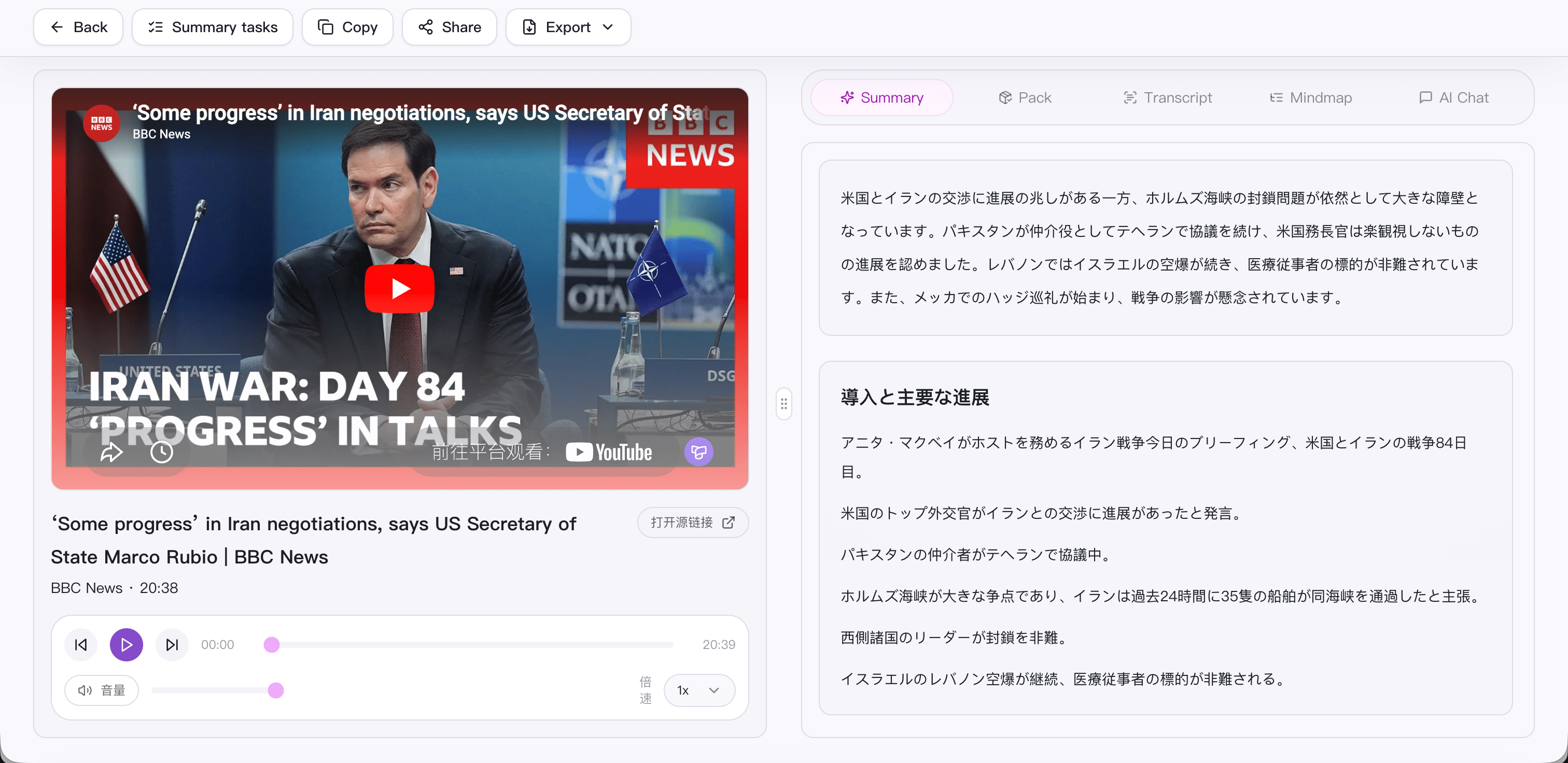
1. What Video Summary does
SnapVee Video Summary can generate several useful outputs:
- Title and overview: a quick explanation of what the source is about.
- Chapter summaries: timestamped sections with headings and key points.
- Original-language transcript: text retained for search and source checking.
- Keywords and action items: useful for learning, operations, and meeting follow-up.
- AI chat: ask follow-up questions about the current video or podcast.
- Mermaid mindmap: a visual structure that can be exported and reused.
- Markdown export: move the result into docs, wikis, Notion, Obsidian, or team spaces.
This is more useful than a generic summary for long videos because you can scan the whole structure first, then go deeper only where needed.
2. How to use Video Summary
The workflow is:
- Open the Video Summary page.
- Choose the input mode: public URL or local upload.
- Pick the output language.
- Paste a YouTube, TikTok, BiliBili, Xiaoyuzhou, Apple Podcasts, or Ximalaya link. For batch links, use one URL per line, up to 3.
- For local uploads, select up to 3 video or audio files. Each file can be up to 500MB and 120 minutes.
- Start the summary task and wait for transcription, summary, and mindmap generation.
- Open the result page to review the summary, transcript, mindmap, and export options.
You do not need to keep the page open. The task continues in the background queue, and you can return to recent tasks later.
3. How to chat with video content
After a summary is ready, follow-up chat is where the result becomes more useful. You do not need to explain the video again because the chat focuses on the current task content.
Useful prompts:
Turn this video into 5 actionable recommendations.
Find the speaker's three main arguments and list the evidence for each one.
Rewrite this lesson as a social media post outline.
Create meeting notes with conclusions, risks, and next actions.
Use the chat based on your goal:
- Learning review: ask for definitions, examples, counterexamples, and hard parts.
- Content operations: generate titles, short scripts, social captions, and angles.
- Meeting review: extract decisions, action items, owners, and open questions.
- Research analysis: compare arguments, surface evidence, and find unresolved issues.
If the first answer is too broad, constrain the format: “use a table,” “keep each point under 30 words,” or “list everything in timestamp order.”
4. How to use the mindmap
The mindmap helps you understand structure before reading the full summary. SnapVee generates Mermaid mindmap text and renders it visually on the result page.
Use it to:
- Understand the topic, chapters, and hierarchy quickly.
- Decide which sections deserve a source replay.
- Turn a course or podcast into a knowledge-base structure.
- Export
.mmdor SVG for docs, Obsidian, Notion, or team knowledge bases. - Continue reading through the fallback tree view if Mermaid rendering fails.
The mindmap does not replace the transcript. It gives you navigation. Scan the mindmap, read the chapter summary, then return to key timestamps only when necessary.
5. Supported social and content platforms
Video Summary currently supports these public sources:
| Source | Input type | Best for |
|---|---|---|
| YouTube | Public video URL | Courses, interviews, demos, long videos |
| TikTok | Public video URL | Short-form ideas and content review |
| BiliBili | Public video URL | Courses, knowledge videos, livestream replays |
| Xiaoyuzhou | Public episode URL | Podcast summaries and interview notes |
| Apple Podcasts | Public podcast URL | Podcasts and interview shows |
| Ximalaya | Public audio URL | Audio courses, podcasts, talks |
| Local files | Video or audio upload | Meeting recordings, training, offline media |
Public links must be sources where audio, video, or page metadata can be resolved reliably. Private, paid, login-gated, region-restricted, or deleted content may not work.
6. Video Summary or Subtitle Transcription?
Use Video Summary when the goal is understanding, review, analysis, or reuse. It gives you summaries, chapters, keywords, action items, AI chat, and a mindmap.
Use Subtitle Transcription when the goal is a line-by-line script, subtitle editing, translation, or caption production.
Simple rule:
- Need to know what the video says: use Video Summary.
- Need subtitle text: use Subtitle Transcription.
- Need knowledge-base notes or review material: use Video Summary.
- Need caption editing for a video workflow: use Subtitle Transcription.
7. Practical tips
- For long videos, read the overview and mindmap first.
- For courses, ask for key concepts, examples, homework, and review checklists.
- For meetings, ask for conclusions, risks, action items, and open questions.
- For podcasts, ask for speaker viewpoints, disagreements, and quotable ideas.
- Export Markdown when you want to keep the result in a knowledge base.
- For important material, replay key timestamps before making final decisions.
Final takeaway
Video Summary saves time, but its bigger value is turning long media into working material. The summary gives you context, chapters give you navigation, AI chat gives you depth, the mindmap gives you structure, and export sends the result into your workflow.
Start from SnapVee Video Summary to turn public videos, podcasts, or local media into readable, searchable, and reusable notes.
Related guides:
About the author
Jason Jiang
Product and engineering lead
Maintains SnapVee's core product features, ships platform support and product updates, and writes official tutorials and comparison content.