SnapVee Desktop: Advantages, Local Downloads, and Authorization
A detailed look at SnapVee Desktop — why it beats the web version, how downloads are saved locally, and how account authorization, device activation, and multi-device management work on Mac and Windows.
Web tools open instantly and are great for a one-off link. But once downloading, organizing, repeat pulls, and local archiving become daily work, SnapVee Desktop is steadier and more focused. It puts download tasks, queue status, and local file management into one dedicated workspace, and uses account authorization to share your access securely across your devices.
Open the SnapVee Desktop page to pick the build for your device: Apple Silicon, Intel Mac, Windows installer, or Windows portable.
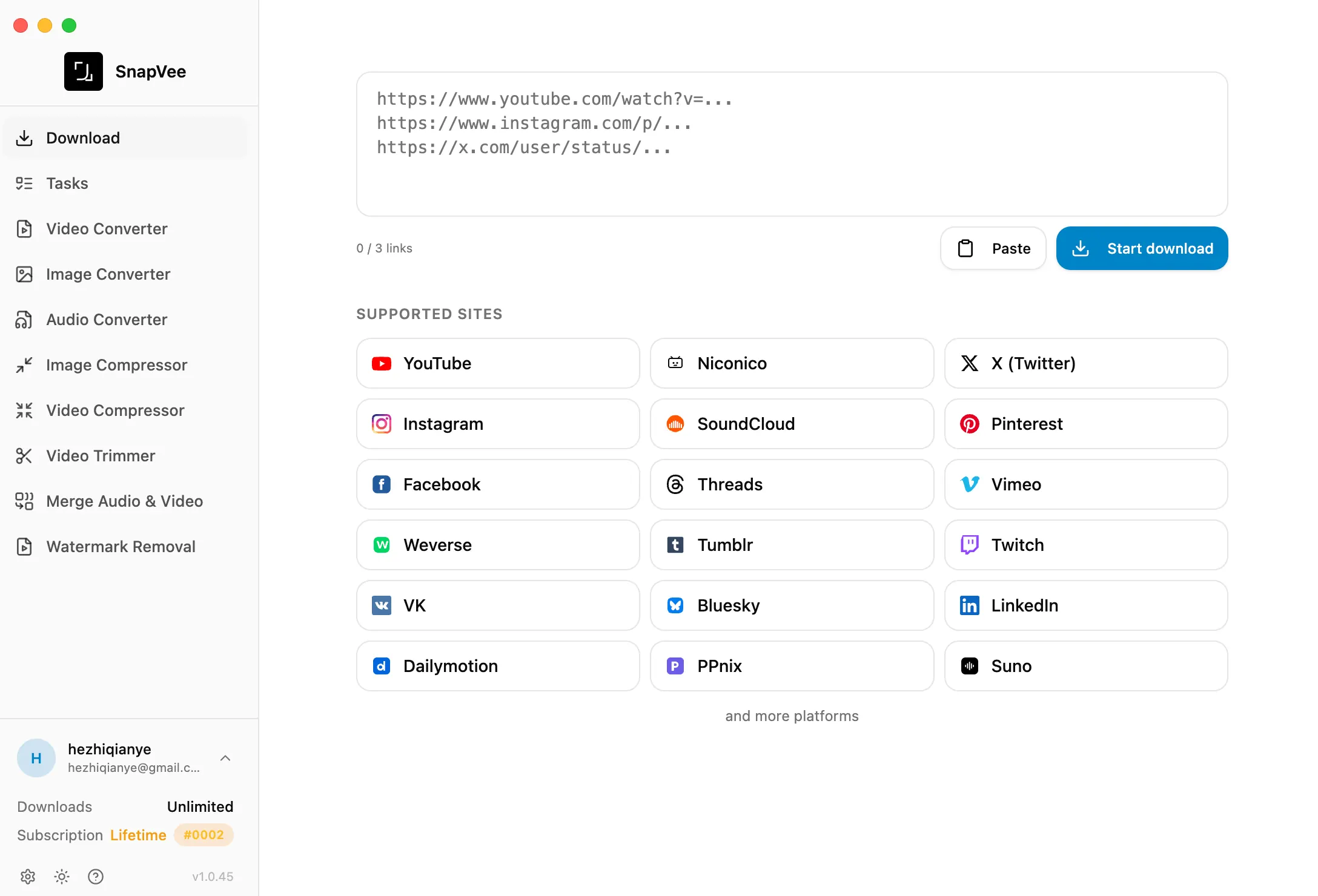
Why the desktop app helps
The value isn't "one more entry point" — it's pulling high-frequency, repeat, long-running work out of a busy browser tab:
- Clearer local saving: results land directly on your machine, so archiving, editing, research, and handoff are cleaner and don't depend on the browser's download folder.
- Efficient batch queues: queue several links at once and let the app keep working in the background while you organize files or prep the next batch.
- Steadier long tasks: no worrying about closing a tab by accident, a page refresh, or browser memory interrupting a download — good for long videos and continuous queues.
- Centralized task state: active jobs, retries, completion history, and local results all live in one app instead of scattered tabs.
- Flexible device coverage: builds for both macOS and Windows, chosen by chip and install preference.
- Account capabilities in sync: sign in with the same SnapVee account and your credits, subscription status, and access follow the account, staying consistent between web and desktop.
If you only save a public video now and then, the web version is enough. If you download, organize, and reuse assets every day, the desktop app saves real time.
Local downloads: how files land on your machine
"Local downloads" means results — video, audio, and more — are saved straight to your own computer instead of staying in a temporary web state. The desktop app is more complete here:
- Paste links to start a task: common video sites are supported; one link per line works best for batches.
- Local queue processing: once queued, the desktop app keeps processing, so a network hiccup or stepping away is less likely to break the whole batch.
- Results saved locally: finished files land on your machine and can be filed by project, date, or purpose for later editing and reuse.
- Retry individual failures: a single failed task doesn't sink the batch — retry it on its own while keeping the completion history.
- Built for a workflow, not one-offs: suited to a continuous "download → organize → create" flow rather than a single click-and-done.
The upside of local downloads: clear file ownership, more controllable progress, offline access to what you've already downloaded, and an easier path to keeping assets in a fixed folder for the long term.
Authorization and device management
The desktop app assigns access through account authorization — secure, and easy to move between devices:
- Authorize in the browser: the first time you use the app, sign in to your SnapVee account in the browser and confirm the authorization. The desktop app then gets access without you typing a password inside the app.
- Up to 3 bound devices: one account can activate up to 3 devices, so you can move between a desktop and a laptop.
- One active session at a time: to avoid an account being used in parallel, one desktop device is active at a time; activating on a new device can replace an older one.
- Credits and subscription follow the account: after signing in, your credit balance and plan (for example Free or an upgraded plan) follow the account and match the web side; upgrade from within the account when needed.
- Manageable authorization: when you hit the device limit, replace one bound device to reassign the active seat.
This keeps usage flexible across several machines while keeping account access clear and hard to abuse.
Where it fits best
| Scenario | Why desktop fits |
|---|---|
| Course and lecture archiving | Lots of long videos, usually filed into local folders by topic after download |
| Creator asset organization | Batch-save references straight into editing, ideation, and review |
| Ops and research material | Needs repeat downloads, naming, archiving, and cross-project reuse |
| Long-running tasks | Keep the app open — better than a browser tab for continuous queues |
| Multi-device work | Builds for Mac and Windows, chosen per current machine |
How to get started
- Open the SnapVee Desktop page.
- Pick a build for your device: Apple Silicon, Intel Mac, Windows installer, or Windows portable (portable auto-matches x64 or ARM64).
- Install and launch the app, sign in and confirm authorization in the browser, and complete device activation.
- Paste links (one per line for batches) and start the download tasks.
- Watch the queue and wait for tasks to finish.
- Open the local results and file them by project, date, or purpose.
Desktop vs. web: which to use
- One-off link: use the web version — it's instant.
- Batch queues or long tasks: use desktop.
- Local archiving and long-term management: use desktop.
- On a public or borrowed computer: the web version is lighter.
- Long-term work on your own creator machine: desktop fits better.
Choosing a Mac or Windows build
Mac users mainly pick by chip:
- Apple Silicon: for M-series Macs.
- Intel Mac: for older Intel-based Macs.
Windows users mainly pick by install habit:
- Windows installer: for long-term use, installed like a normal app.
- Windows portable: for running from a fixed folder or external drive without installing; auto-selects x64 or ARM64.
If you're unsure of your architecture, use the build the page recommends, or the standard installer.
Tips
- Keep batch links one per line so the queue is easy to scan.
- Before downloading, confirm the content is public, accessible, and something you're allowed to save.
- Keep a stable network for long-video tasks; avoid switching proxies or networks often.
- File finished downloads by project right away so assets don't pile up in the default folder.
- Keep the original link for important assets so you can verify the source later.
- For learning videos, continue with Video Summary for a summary and mind map; for line-by-line text, use Subtitle Transcription.
Conclusion
SnapVee Desktop fits high-frequency, local, batch, and long-running content workflows: downloads land locally, tasks stay centralized, and account authorization keeps access across several devices clear and controllable.
Head to the SnapVee Desktop page to pick your macOS or Windows build and move your video assets into a steadier local workspace.
About the author

Jason Jiang
Product and engineering lead
Maintains SnapVee's core product features, ships platform support and product updates, and writes official tutorials and comparison content.