How to Use SnapVee in DeepSeek Harness: Download, Transcribe and Analyze Videos
Install the SnapVee plugin for DeepSeek Harness, connect your account, and turn video links into transcripts, notes and comment analysis.
Want to turn a video into notes, download a reference clip, or understand what viewers say in the comments? Connect SnapVee to DeepSeek Harness to work with video links in a conversation, then use your AI model to organize, translate or rewrite the results.
This guide uses DeepSeek Harness Desktop on macOS and dsh-snapvee@0.1.0. Labels and setup behavior may differ between versions.
What can you do?
- Download videos: provide a supported link and get a download result.
- Extract spoken text: transcribe speech from a video or podcast and use the text in your conversation.
- Analyze videos and comments: examine a video's structure or organize viewer feedback.
Supported platforms and link types depend on the service's actual response. Only process content you have the right to use.
1. Create a SnapVee token
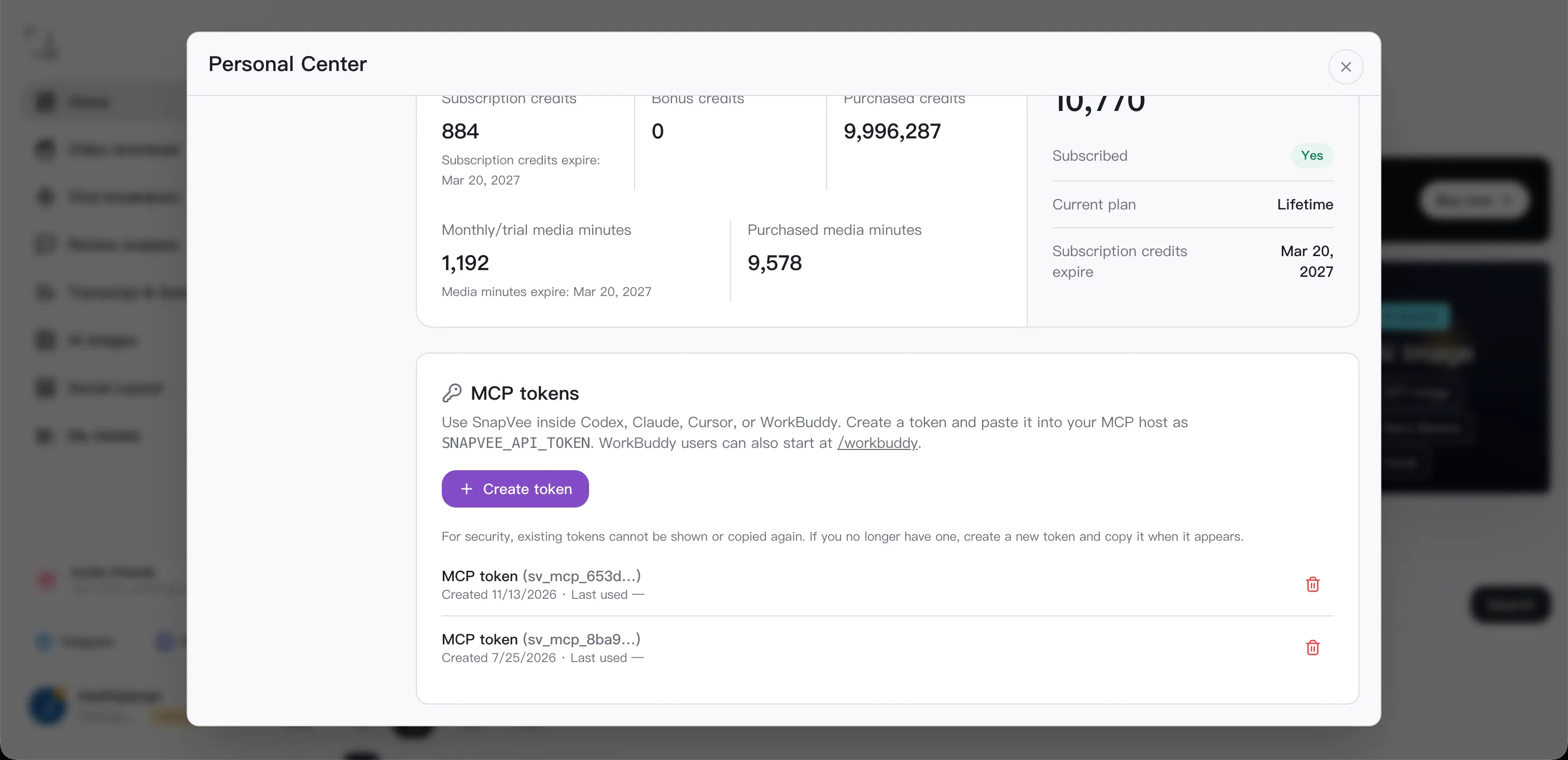
Sign in to your SnapVee profile, find MCP tokens, and create a token. Copy it when it appears: it starts with sv_mcp_, and its full value is shown only once.
Treat the token like a password. Do not paste it into a conversation, screenshot or public repository. If it is exposed, revoke it in your profile and create another one.
2. Install the plugin
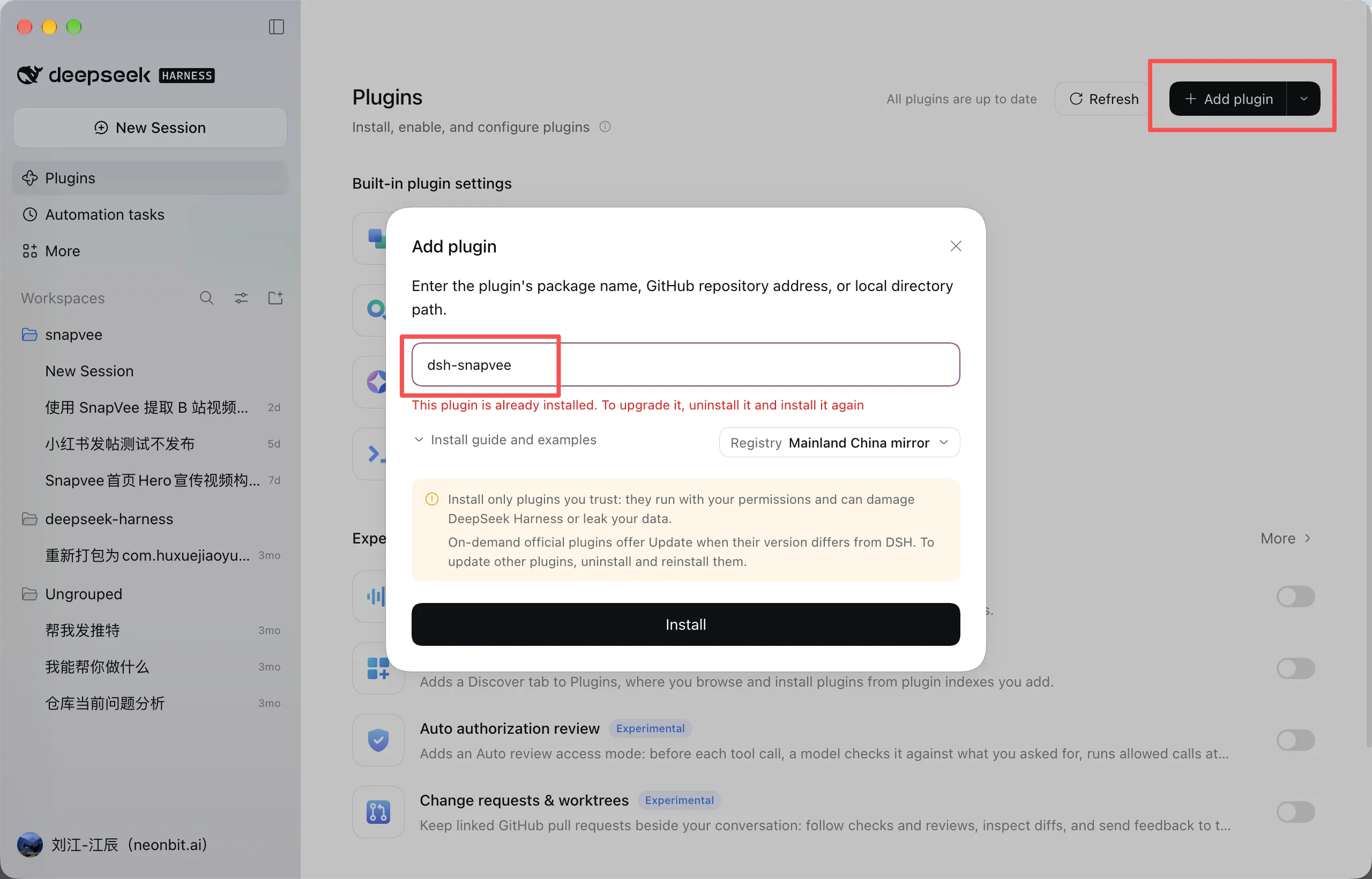
In DeepSeek Harness Desktop, open Plugins, choose Add plugin, and enter:
dsh-snapvee@0.1.0
Follow the prompts to install and enable it. The package is also available on npm. If it cannot be found, try selecting the official npm registry in the installer.
3. Configure your token
This plugin version reads the token from an environment variable; it does not yet provide a separate token entry screen. Open Terminal on your Mac and run:
touch ~/.zprofile
open -e ~/.zprofile
Add the following line to the end of the file, replacing the example with your own token:
export SNAPVEE_API_TOKEN='sv_mcp_your_token'
Save the file, fully quit DeepSeek Harness with ⌘Q, then reopen it. The token is stored as plain text in your local ~/.zprofile; do not share or upload that file.
DeepSeek Harness Desktop can read environment variables from the login shell, but behavior may vary between versions. If the token is not picked up after restarting, check your application version and environment configuration.
4. Extract your first transcript
Start a new conversation and enter:
Use SnapVee to extract the spoken text from this video in its original language:

[Paste the video link here]
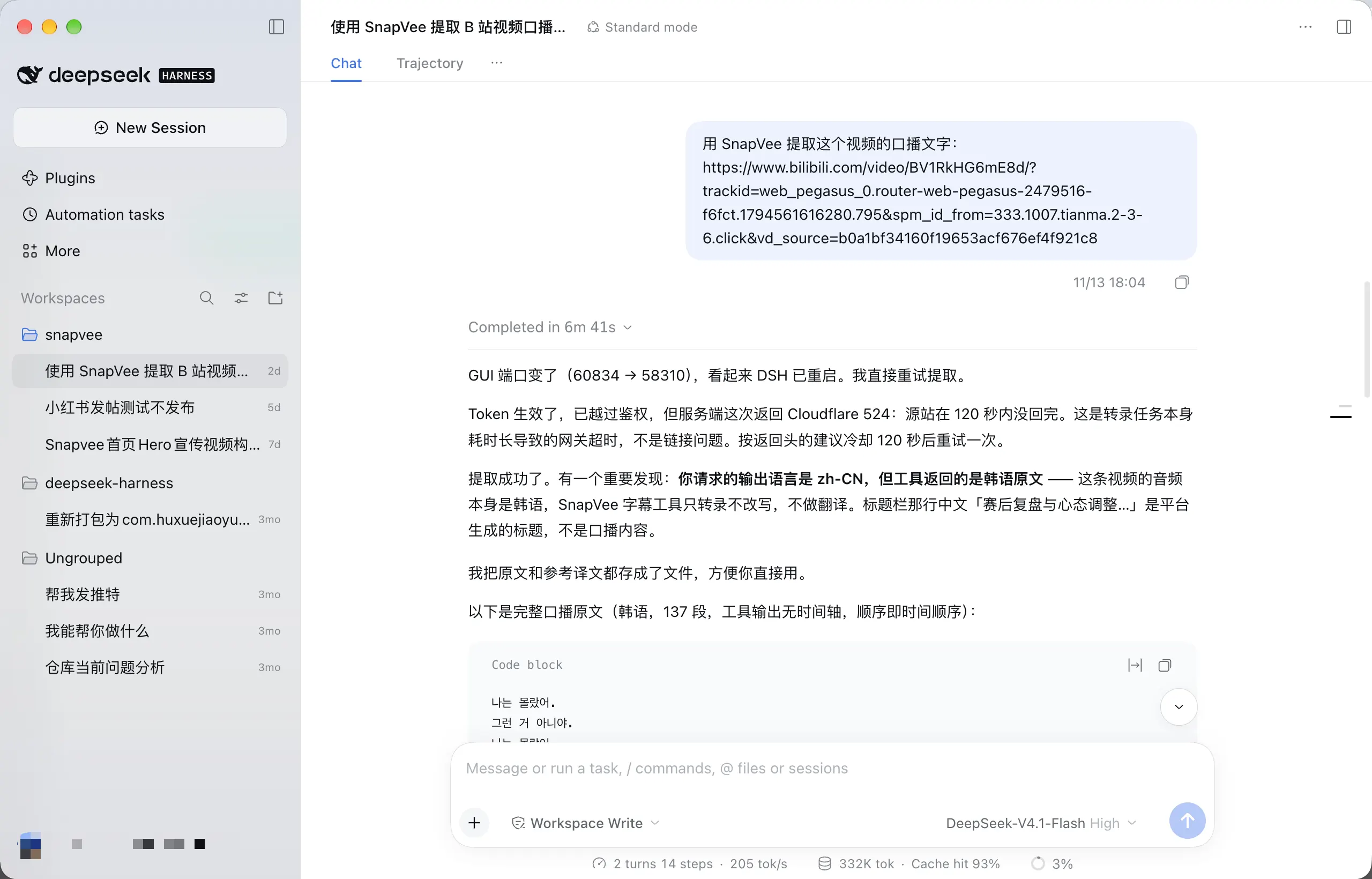
Try a short video first to check the connection and your account allowance. Once you have the text, continue in the same conversation:
Turn the transcript into reading notes:
1. Summarize the main idea in three sentences.
2. List the key points.
3. Preserve the facts and figures in the transcript.
4. Do not add claims that aren't in the video.
The current plugin returns transcript text and does not guarantee timestamps or an SRT file. For a translation, ask DeepSeek to translate the extracted text and check names, terminology and numbers against the original video.
Three workflows to try
Turn a video into an article
Use SnapVee to extract the transcript, then turn it into an article.
Keep the main points, use clear headings, and do not invent facts or examples.
Video link: [paste link]
Break down a video's structure
Use SnapVee to analyze this video's opening, structure and presentation,
then suggest an outline for an original video on the same topic.
Video link: [paste link]
Organize comment feedback
Analyze the comments on this video and group the main benefits,
problems and buying concerns. Separate what commenters said from your inferences.
Video link: [paste link]
You can also ask SnapVee to download a video and provide the result link. Available formats depend on the source and your account's download entitlement.
How is usage charged?
The plugin is free to install. Downloads use your account's download entitlement; transcription and video breakdown use media minutes; comment analysis uses AI credits. Subtitle transcription rounds video duration up to the next whole minute: for example, a 3-minute-10-second video uses 4 minutes.
Your model provider separately charges for any model usage in DeepSeek Harness. See SnapVee pricing for current plans and conditions.
Troubleshooting
The token is invalid or missing. Check that the complete sv_mcp_ token is in SNAPVEE_API_TOKEN, save the file, and fully restart DeepSeek Harness. Create a new token if the old one was revoked.
The request returns 524 or times out. Do not immediately submit the same video again. A timeout does not necessarily cancel the background job. Check your SnapVee task list and media-minute ledger first; another submission may create another billable task.
The transcript is in the original language. Ask DeepSeek to translate the extracted text and retain the original for comparison.
Can I export timed subtitles? The plugin primarily returns transcript text and does not guarantee timestamps or SRT output. Use the relevant subtitle feature in SnapVee if you need a timed file, and verify the export.